
A page builder is a plugin that lets you arrange a page by dragging and clicking instead of writing code. If you are a Wealthy Affiliate premium member building a WordPress site, the builder is one of the first choices you make, and one of the hardest to undo later. The right builder depends on whether you can build the page you want without design training, how much extra weight it adds to the live page, and what happens to your content if you remove it.
Most roundups rank builders by feature count. This article compares them on the two things a non-designer notices straight away, build speed and page weight, and on a third that only shows up later: lock-in.
Why the builder you pick changes how fast your site loads
Every builder has to turn your layout into HTML, CSS and JavaScript that a browser can read. Some produce compact output. Others load large stylesheets and scripts on every page, including scripts for features you never use.
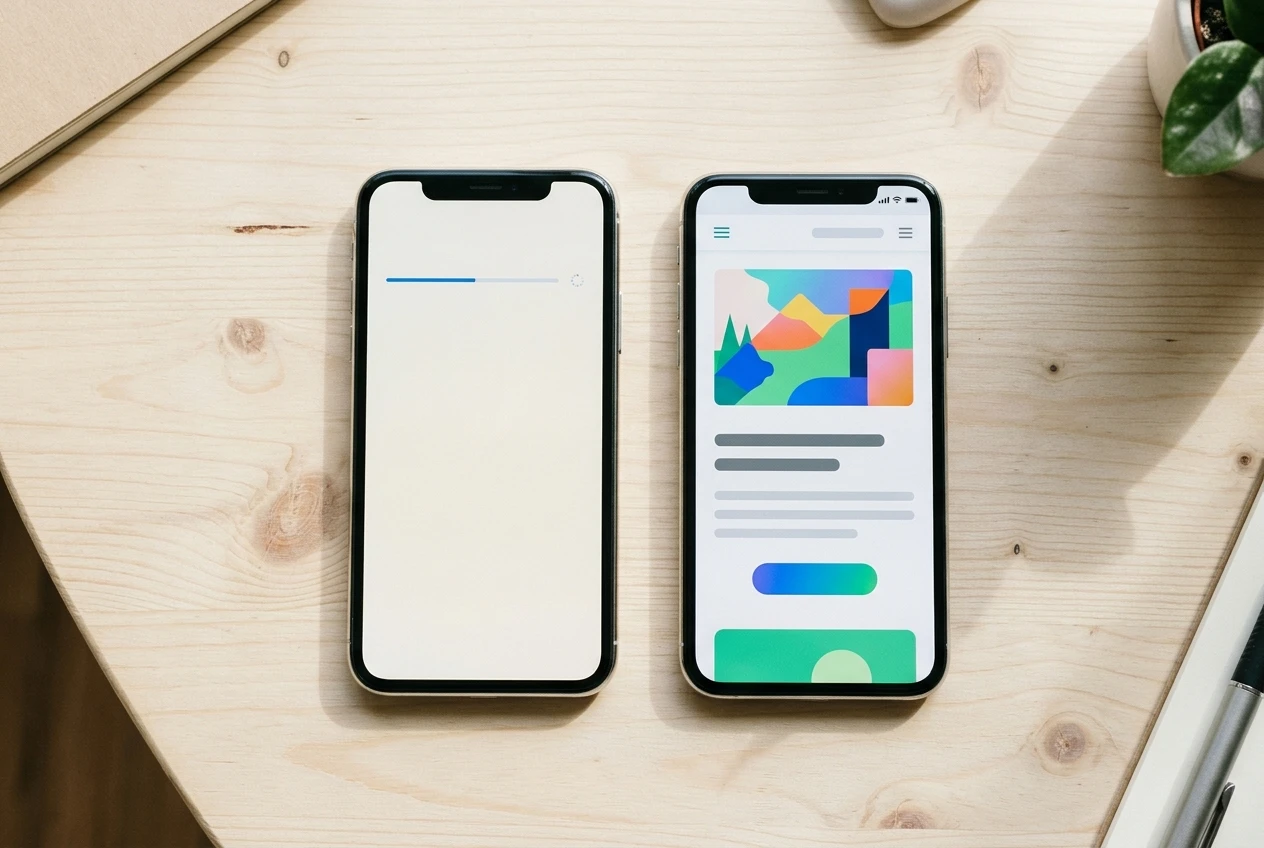
That extra code has to be downloaded and processed before a visitor sees a finished page, and phones on mobile connections feel it most. Slow pages cost you visitors, and for an affiliate site they cost you clicks on your links. We cover that connection in more depth in why a faster WordPress site sells more.
The builder is not the only factor. Your theme, hosting, images and other plugins all add to load time. But the builder controls how every page is structured, so a heavy one affects every page you make with it. Picking it early is cheaper than switching after fifty pages.
What a non-designer really needs from a page builder
Feature lists include hundreds of widgets, animations and effects. A personal or small business site uses a small fraction of them. What a beginner needs is shorter:
- Layout control without code. Columns, spacing, a hero section with a heading, text and a button, and a layout that rearranges sensibly on a phone.
- Starting points. Ready-made sections or page templates you can edit are faster than a blank canvas, especially when you have no sense of what spacing looks good.
- Reliable buttons and links. Your affiliate links will sit inside buttons, text and images, so you need to set the link address, open it in a new tab if you want, and control the link attributes.
- Mobile preview. You should be able to see and adjust the phone layout without guessing.
- Consistent styling. Setting fonts and colors once, and having every page follow them, keeps a site looking coherent when you have no design eye.
A builder that does these five things well will serve most beginner sites. Everything past that is optional, and each optional feature tends to add code.
How to compare builders: ease of use, code weight and lock-in
Three criteria separate builders in practice, and you can judge each one yourself.
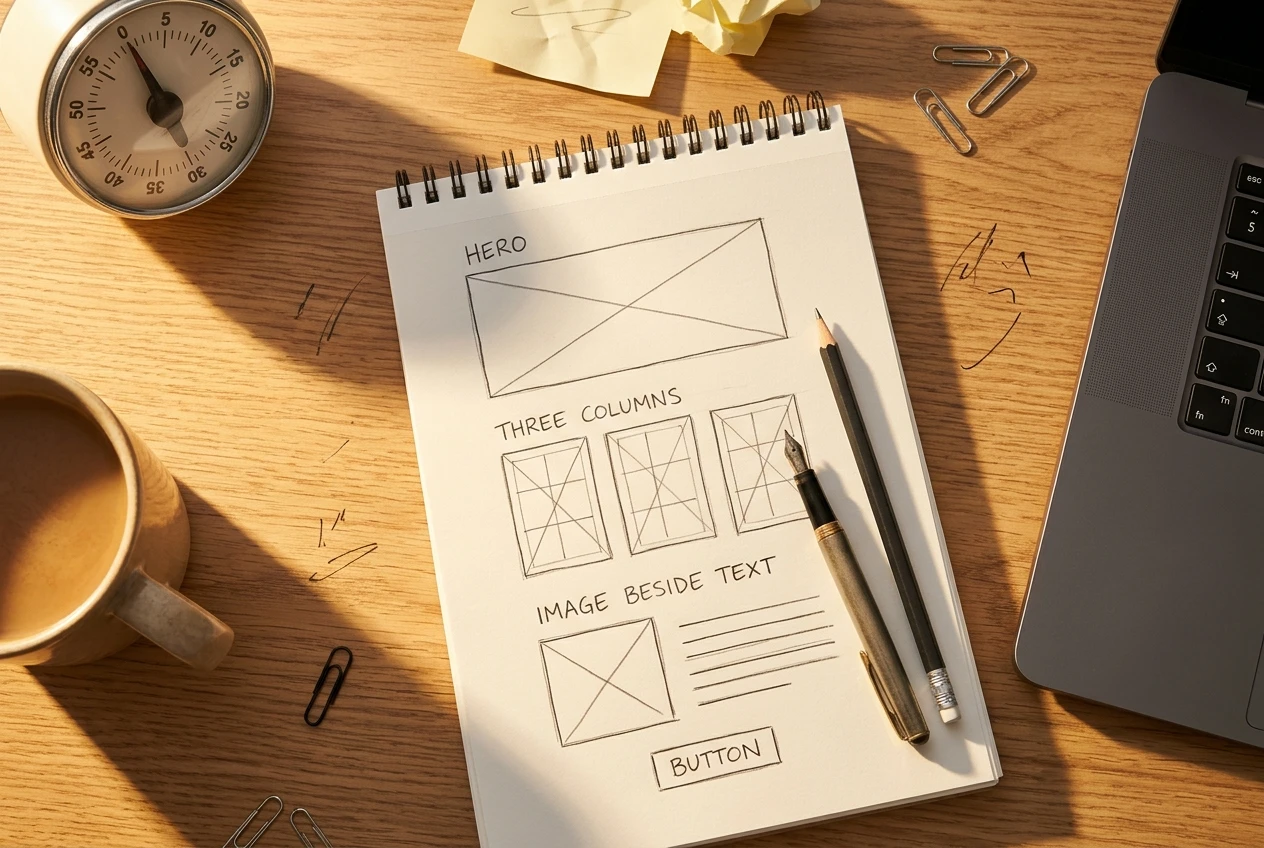
Ease of use. Build the same page in each candidate and time it. Use one fixed page so the comparison is fair: a heading and intro, a three-item benefit section, an image with text beside it, a review-style block with a button, and a short FAQ. Note where you got stuck, how often you went looking for a setting, and whether the phone version needed rework.
Code weight. Compare the finished pages. A builder that looks easy but loads heavy files will cost you on every visit. The testing section below shows how to measure this with free tools.
Lock-in. Builders store your layout in different ways. In some, the content stays as ordinary text and standard WordPress structures. In others, the layout is saved in the builder’s own format, and removing the plugin leaves you with scrambled or missing pages. You will not notice this until you want to leave.
Pricing and feature sets change often, so check each builder’s current plans on its own site before deciding. Whether a plan includes the features you need matters more than the headline price.
The builders worth trying, and who each one suits
These four options cover the range most beginners choose from. Treat the descriptions as starting hypotheses to confirm with your own test page.
The built-in WordPress block editor
WordPress ships with a block editor, so there is nothing extra to install. You build pages from blocks for headings, paragraphs, images, columns, buttons and groups. Content is saved in standard markup that WordPress understands without any add-on.
Because it is part of WordPress itself, it adds no separate builder layer to the page, and it tends to be the lightest option. The trade-off is that it offers less visual control out of the box than a dedicated builder. Complex layouts take more steps, and some design effects are not available.
It suits people building a blog, review pages or a simple business site, who care most about speed and want the least risk of lock-in.
Block editor extensions
A group of plugins adds extra blocks and design controls to the block editor rather than replacing it. Kadence Blocks, Spectra and GenerateBlocks are examples. You still work in the editor you already know, with additional blocks such as pricing tables, icon lists, advanced columns and more spacing control.
This approach keeps most of the lightness and portability of the block editor while giving you more layout power. Content built with only core blocks stays fully portable. Content built with an extension’s own blocks may lose its styling if you remove the plugin, so how portable your pages stay depends on how many of those special blocks you use.
It suits non-designers who want more polish than the plain block editor, without moving to a separate builder.
Elementor
Elementor is one of the most widely used visual builders. You work in a dedicated editing screen with a widget panel and drag elements onto the page. It has a free version and paid plans, a large library of templates, and a very large community, which means tutorials for almost any problem.
The learning curve is gentle and it is quick for building custom layouts. The costs are that it generally loads more code than the block editor, and that it stores your layout in its own data format. Removing it normally means rebuilding the layouts. Elementor has settings aimed at reducing load, and they are worth reading about, but test the result rather than assuming it.
It suits people who want maximum visual freedom and a big library of templates, and who accept that the site will depend on the plugin.
Divi
Divi is a builder and theme package with its own visual editor, a large set of modules, and many layout packs. Its long-standing format stores layouts as shortcodes inside the page content. Check how the current version you install stores content, because that behavior can change between versions.
It is capable and suits people who want one product for both the theme and the page layout. The caution is the same as with other builders that keep layouts in their own format: if you uninstall it, shortcode text can be left behind across your pages. Moving a large site away from such a builder is a real project.
It suits people who intend to stay with one system and want its integrated design tools.
Beaver Builder and a few others are also worth a look if the four above do not suit you, and the same three tests apply to them.
What happens to your pages if you uninstall the builder
This is the question most comparisons skip, and the answer depends on how a builder saves your work.
There are roughly three outcomes:
- Content stays clean. Pages built from standard WordPress blocks keep their text, headings, images and links in plain, standard form. If you remove a plugin, the page still reads properly.
- Content stays but layout breaks. Some builders leave the text in place but lose the columns, spacing and styling. You get a long, plain page you must rebuild by hand.
- Content is cluttered with leftover code. Shortcode-based builders can leave strings of bracketed codes through the text. Cleaning these up across many pages is slow.
None of these is a reason to avoid every builder. A builder’s convenience may be worth the dependence. The point is to decide with knowledge, so the dependence is a choice and not a surprise.
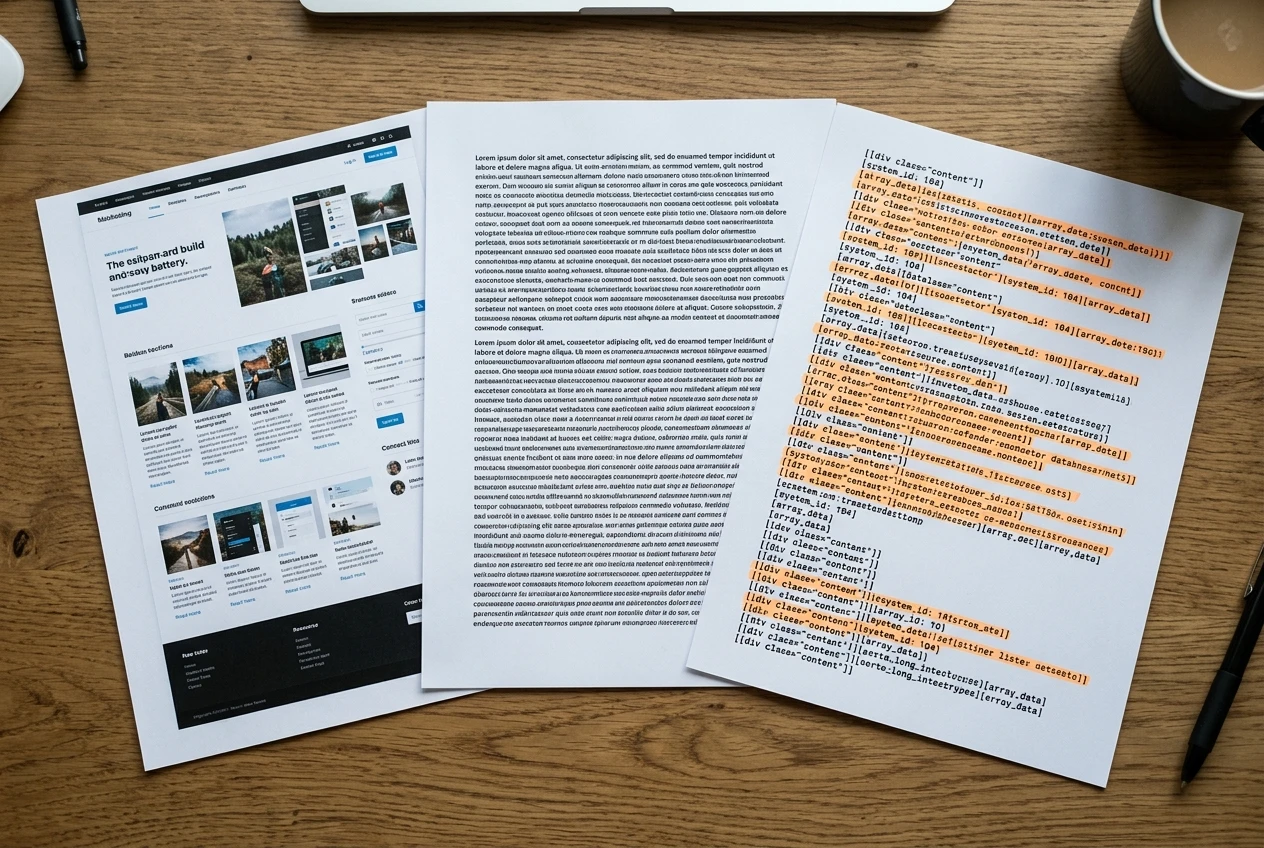
You can find out for any builder before you commit. Build your test page, then on a staging copy or a throwaway site, deactivate the builder and view the page. Whatever you see is roughly what you would be left with. If the page is unreadable, you know the cost of leaving.
If you are still deciding between WordPress and a hosted website builder at all, our piece on website builder vs WordPress covers that decision from the earning side.
Check a builder’s speed cost yourself before you commit
Vendor claims about speed are not much use to you. Your pages, theme and host differ from anyone else’s, so measure them on your own site.
Build the same test page with each candidate builder, using identical text and images, and one baseline version with the plain block editor. Then run each page through these free tools:
- PageSpeed Insights from Google, which tests a live URL and reports on mobile and desktop.
- Lighthouse inside the Chrome browser’s developer tools, for a second reading.
- The Network tab in your browser’s developer tools, which shows how many files the page loads and their total size.
Tools need a reachable URL, so the test page has to be live while you test it. Keep it out of your menu, tell search engines not to index it using your SEO plugin, and delete it when you finish.

Look at a few numbers rather than a single score:
- Largest Contentful Paint: how long until the main content appears.
- Total Blocking Time: how long the page is busy running scripts before it responds.
- Cumulative Layout Shift: how much the layout jumps while loading.
- Total page size and number of requests: a plain measure of how much the builder added.
Run each test several times, because scores vary from run to run, and compare the builders against the same baseline. If one builder adds a lot to page size and delays the main content noticeably, that cost repeats on every page you build with it.
Speed also depends on what surrounds the builder. A lightweight theme helps, which is why choosing the theme matters as much as the builder, and how to pick a WordPress theme that looks good and still loads fast covers that side. Your plugin list matters too, as described in the WordPress plugins worth installing when your site needs to grow.
Add your affiliate links while you test
Build at least one affiliate link into the test page, because that is a real task you will repeat often. Put the link on a button and on a text link, then check these points in each builder:
- Can you paste the link address and choose whether it opens in a new tab?
- Can you set link attributes? Google recommends marking affiliate links with rel=”sponsored”, and some builders offer a field for it while others need a plugin or a manual edit.
- Does the link work on the published page and on mobile?
- Is there room near the link for a short disclosure that you earn a commission? Check the disclosure rules that apply where you and your readers live.
A builder that makes this awkward will annoy you every time you write a review. The article on how to write affiliate reviews that convert because they help covers what goes on the page around those links.
Which builder to pick based on the site you are building
Match the builder to the site, using what your test pages showed you.
A content site with reviews and guides. Most of your pages are text, images and links. The built-in block editor, perhaps with one extension plugin, gives you the lightest pages and the least lock-in. Spend your effort on the writing.
A small business site with a few polished pages. You have a home page, services and contact pages that need to look professional. A block extension or Elementor will get you a more designed look quickly. Elementor gives the most freedom, and an extension keeps the pages more portable. See the pages your business website needs besides home and about for what to include.
A site where you want one package for everything. If you prefer one product for theme and layout, Divi suits that approach, as long as you accept the dependence on it.
A site you may redesign later. Favor the block editor and extensions, because standard content survives redesigns best.
If two builders came out close on your tests, pick the one where building the sample page felt less frustrating. You will build many more pages, and a tool you can use quickly will get more of them published.
Pick the one or two builders that fit your site, test each on a single draft page, and compare the load results before you build out the rest. Then read our guide on choosing a fast WordPress theme so the theme and builder work together.