
Every page on a WordPress site is built by its theme. The theme decides which stylesheets, scripts, fonts, and images load before your own content appears. A heavy theme adds that weight to every page you publish, and no later fix removes all of it.
This guide covers how to choose a WordPress theme with a method you can repeat: set a performance budget, test the theme against it, and score the finalists. It assumes you run a personal site, you are not a developer, and you want something that looks polished without making visitors wait.
Why the theme you pick sets the ceiling on your site’s speed
A new WordPress site has little on it: a few pages, a handful of images, and maybe two or three plugins. Most of what the browser downloads on that first day comes from the theme. That makes the theme the largest single influence on how fast the site can be.
Themes slow a site down in a few specific ways:
- Bundled scripts and styles. Many themes load code for sliders, animations, and layout options whether or not you use them.
- Fonts. Each font family and weight is a separate file. A theme that loads four weights of two families adds several downloads before the text can display in its final form.
- Large images in the template. Hero banners and background images set in the theme are often bigger than they need to be.
- Built-in page builders and widget libraries. These give you flexibility and carry their code on every page.
You can optimize around a heavy theme, and the last section covers how. It is easier to start with one that loads little and add what you need.
Google publishes thresholds for page experience. Its Core Web Vitals treat a Largest Contentful Paint of 2.5 seconds or less as good, which means the main content of a page should be visible within that time. You do not have to memorize the metrics, but a number like this gives you a target to test against.
Decide what your site needs before you look at a single demo
Theme demos are designed to impress. If you open them first, you end up choosing based on a photographer’s portfolio layout you will never replicate. Write down what the site must do before you browse anything.
A short spec is enough. Answer these questions on one page:
- What pages will the site have? For example: home, about, blog, contact, maybe a projects or portfolio page.
- What content will you publish most? Long articles, photo galleries, short updates, or a mix.
- What features do you need from the theme itself? A blog layout, a menu with a few items, a footer with links, perhaps a newsletter signup area. Anything that a small plugin can handle does not need to come from the theme.
- How much will you customize? If you only want to change colors, fonts, and a logo, almost any good theme works. If you want to rearrange page layouts freely, that narrows the choice.
- How much time do you want to spend maintaining it? A theme with fewer options has less to configure and less to break.
Set a performance budget
A performance budget is a limit you set in advance, so a theme either fits or does not. Choose limits you can measure with a free tool. Here is a starting point you can adjust:
- Home page total size of about 1 MB or less on the demo or test install, with a few images.
- Largest Contentful Paint at or under 2.5 seconds in a PageSpeed Insights mobile test.
- No more than two font families.
- No required plugin you did not plan to install.
These numbers are suggestions, not industry rules. What matters is that you write yours down before looking at demos, because a gorgeous demo makes every limit feel negotiable.
The demo trap: how to read a theme preview with a skeptical eye
A demo shows the theme at its best. It uses professional photography, carefully chosen fonts, and often several plugins that are not included with the theme. What you see is not what you get when you install it.
Look at a demo with these questions in mind.
What is the demo showing that you will not have? Full-width video backgrounds, parallax scrolling, and polished stock images create most of the impression. Cover the images in your mind and look at the structure: the spacing, the typography, the navigation. That structure is what you are actually choosing.
Does the demo need extra plugins? Many demos depend on a page builder or an add-on pack, and some of those are paid. Check the theme’s documentation or listing for a list of required and recommended plugins. Every required plugin adds weight and another item to keep updated.
Is the demo one page or many? Open the blog layout, a single post, and the contact page, not just the home page. Home pages get the most design attention. The pages you will actually use most as a personal site owner, posts and an about page, are often plainer.
How does it look on your phone? Open the demo on a real phone, not only by shrinking a desktop browser window. Check that text is readable without zooming, buttons are easy to tap, and the menu opens cleanly.
Also notice how long the demo takes to load on your phone. Demo sites are often hosted well and still feel slow when the theme is heavy. If the demo feels sluggish on a good connection, your site will feel at least that slow.
Test a theme’s speed before you install it on your real site
You can measure a theme before you commit, and doing so is the step that matters most. There are two ways, and the second is more accurate.
Test the demo URL
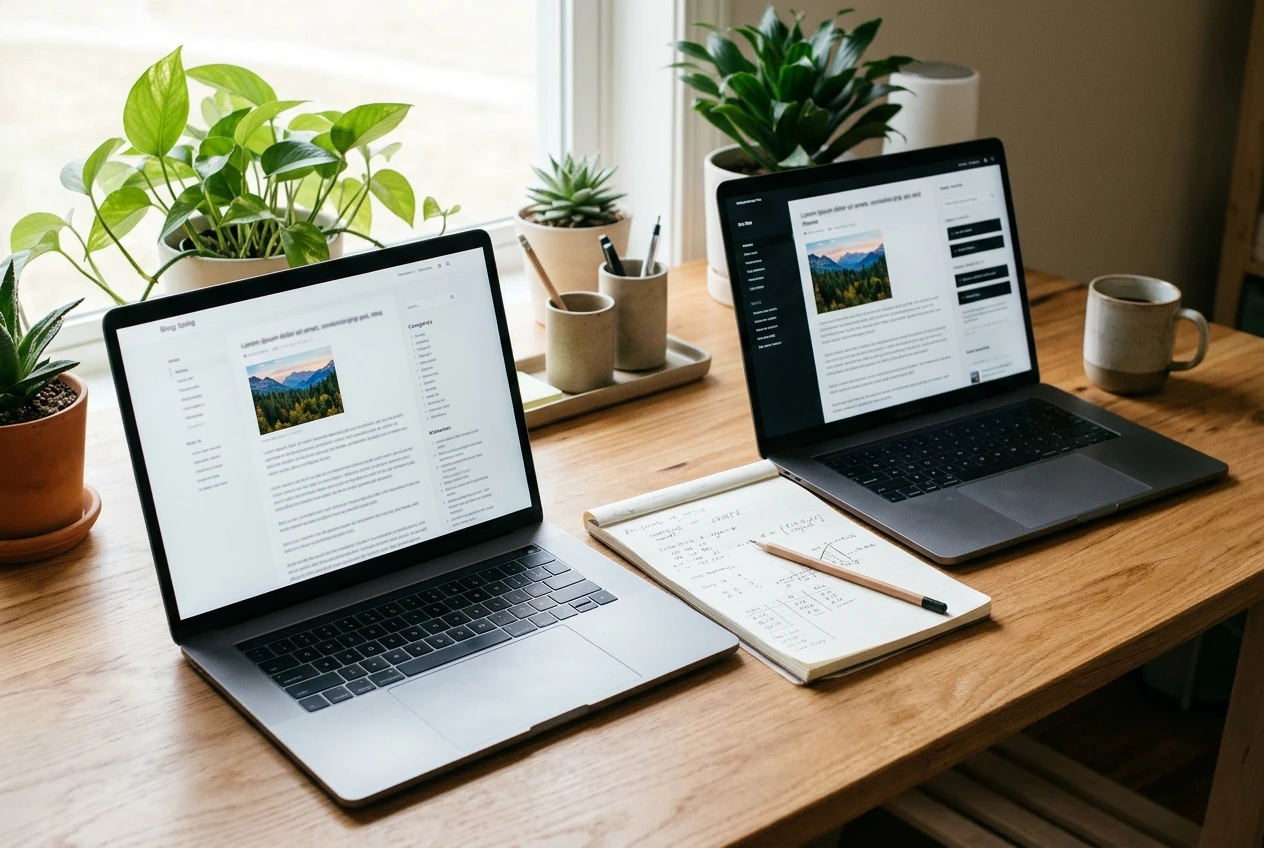
Paste the theme’s demo address into a free tool such as Google’s PageSpeed Insights, GTmetrix, or WebPageTest. Run the test a couple of times and look at the mobile result. Note the Largest Contentful Paint, the total page size, and the number of requests.
This has limits. Demos are loaded with large sample images and sometimes extra plugins, so the result can be worse than your real site would be. A fast demo is still a good sign, because it means the theme is not the problem even with all that extra material. A slow demo means you should find out why before dismissing the theme.
Test an install with your own content
The more reliable method is to install the theme on a copy of your site, not the live one. Options include a staging site, which many hosts offer from their dashboard, or a fresh WordPress install on a subdomain. If you are still choosing a host as well, our guide to choosing the best hosting provider for your needs covers what to look for, since hosting also affects these results.
On that test install:
- Add a realistic home page and one blog post, with your own images at the sizes you would actually upload.
- Activate only the plugins you plan to use.
- Run the same speed test on the home page and the post, and record the results.
- Repeat with each theme you are considering, on the same host with the same content.
Using identical content and the same host is what makes the comparison fair. Any difference in the numbers then comes from the theme.
Lightweight, multipurpose, or block theme: which type fits you
Themes fall into rough categories, and the category tells you a lot about what a theme will load and how you will customize it.
Lightweight themes
These are built to do little and do it quickly. They provide a clean layout, a handful of settings for colors, fonts, and header and footer options, and not much else. Pages stay small because there is little code to load.
They suit personal sites well: blogs, portfolios, and simple information sites. The tradeoff is that complex layouts need a plugin or some design effort of your own.
Multipurpose themes
Multipurpose themes try to cover every kind of site, with dozens of demos, built-in page builders, and large option panels. They can look impressive and let you build almost anything without extra plugins.
That flexibility is also the reason they are usually heavier. They often load code for features you never switch on, and the number of options can make a simple site harder to set up. Consider one only if you have a specific reason, such as needing a layout no lighter theme offers.
Block themes
Block themes, sometimes called full site editing themes, are built around WordPress’s own Site Editor. You edit headers, footers, and templates with the same block interface you use for posts, so you often do not need a separate page builder.
Because they use WordPress’s built-in tools, they can be lean, and you get a lot of control over layout. The learning curve is real, though: the Site Editor works differently from the older Customizer, and it takes a little time to understand how templates and styles fit together. If you are comfortable learning a new editor and want layout control without extra plugins, a block theme is worth a close look.
Which should you choose?
For most personal-site owners, a lightweight theme or a lean block theme is the best default. Pick a multipurpose theme only when your spec from earlier says you need something they do that the others cannot.
Check the details that bite later: mobile layout, updates, support, and customization limits
Speed and looks are the obvious tests. Four other details tend to cause problems months after you have installed a theme, so check them now.
Mobile layout
Most visitors will see your site on a phone, so judge the mobile layout first. On your test install, view the site on a real phone and check:
- Body text is large enough to read without zooming.
- Tap targets such as menu items and buttons are not crowded together.
- Images fit the screen without sideways scrolling.
- The header does not take up most of the screen before content begins.
Updates and maintenance record
Themes need regular updates to stay compatible with WordPress and to fix security issues. In the WordPress.org theme directory, each theme’s page shows when it was last updated, how many active installations it has, and its ratings. For a theme sold elsewhere, look for a changelog on the developer’s site.
A theme that has not been updated in a long time is a risk. This ties into site security more broadly, which we cover in our guide on how to secure a WordPress website.
Support
Find out where you would go with a problem. The WordPress.org directory has a support forum for each theme, and you can read it to see whether questions get answered and how quickly. Paid themes usually list their support terms: how long support lasts, and whether it comes by email, forum, or chat. Read a few recent threads, because a support channel that looks active on paper can have unanswered questions piled up.
Customization limits
Check that the theme can do the specific things from your spec. Can you change fonts and colors site-wide? Can you build the header you want? Can you edit the footer? Some themes lock features behind a paid version, and discovering that after you have built your pages is frustrating. Read the feature comparison between the free and paid versions before you start.
One more point: avoid choosing a theme that ties your content to it. If a theme stores your layouts in its own special format, switching later can break your pages. Themes that use standard WordPress blocks and ordinary posts and pages are easier to leave.
A simple scorecard for comparing your final two or three themes
When you have narrowed the list to two or three themes, scoring them removes the guesswork. Score each theme from 1 (poor) to 5 (excellent) on each row, multiply by the weight, and add up the results.
Criterion Weight What a 5 looks like Speed on your test install 3 Meets every limit in your performance budget Mobile layout 3 Readable, easy to tap, no sideways scrolling Customization fits your spec 2 Does everything on your list without extra paid add-ons Updates and support record 2 Recently updated, support questions get answered Visual match 2 Looks close to what you want with only colors, fonts, and a logo changed
The highest possible score is 60. Speed and mobile layout carry the most weight because they affect every visitor on every visit, while visual taste can be adjusted afterward.
A few rules make the scorecard more useful:
- Score from your test install, not the demo. The demo only decides who makes the shortlist.
- Disqualify on a failed budget. If a theme misses a hard limit, such as a required plugin you do not want, drop it no matter what it scores elsewhere.
- Break ties with simplicity. If two themes score within a few points, choose the one with fewer options and less code. It will be easier to maintain.
- Score separately, then compare. Fill in the scorecard for each theme on its own so a favorite does not influence the numbers.
Keep the finished scorecards. When you consider changing themes in the future, you can use the same criteria and compare against what you recorded.
What to do when you’ve already picked a heavy theme
If your site is live on a theme that is slower than you would like, you have two routes: reduce what the theme loads, or switch.
Reduce what the theme loads
Start with the easiest changes:
- Turn off theme features you do not use. Many themes have settings for modules, animations, or extra widgets. Disable whatever you are not using.
- Remove sliders and large background media. These are among the heaviest elements on many pages.
- Cut fonts down. Use one or two families and only the weights you need. A system font stack loads nothing extra.
- Resize and compress images before uploading. Image weight often matters as much as theme weight.
- Remove plugins that duplicate theme features. If both do the same job, both load their code.
- Add caching. A caching plugin or your host’s built-in caching can reduce load time without changing the theme.
After each change, run your speed test again. That shows which change helped and which did nothing.
Switch themes safely
If the numbers are still far from your budget, switching may be the better choice. Do it on a staging copy first. Switching themes can change how pages look, and content built with a theme’s own shortcodes or page builder may break or show as raw text. Check your key pages, menus, widgets, and forms before making the change on the live site. Take a full backup before you switch.
Switching is a normal maintenance task, and your scorecard from the previous section makes the choice of replacement straightforward.
Next step
Pick your top two themes, run them through the scorecard in this article, and then read our guide on common website design mistakes before you start customizing.
Leave a Reply