Search for website building tools for beginners and you will find lists of 40 apps, each with a “must-have” label. You open a dozen tabs, sign up for three free trials, and by the weekend you have a folder of bookmarks and no website. The problem is that those lists sort tools by category name instead of by the job you need done right now.
This guide sorts them by stage instead: build, design, speed, security and tracking. Each stage gets one recommended pick and a short note on what to ignore for now. Hosting, domains, AI design tools and SEO basics already have their own articles, so they appear here only as links.
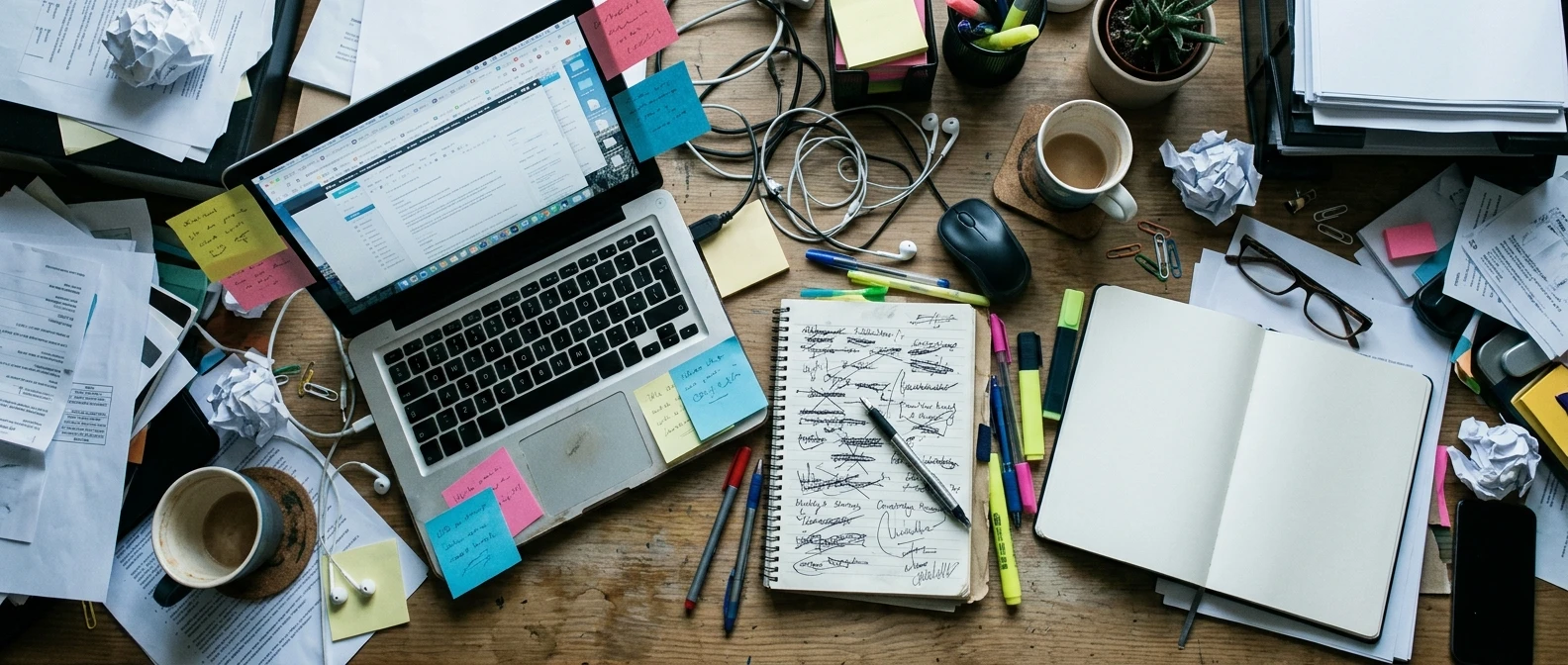
Why most beginner tool lists leave you with 30 tabs and no website
A list of tools has no order. It does not tell you that a backup plugin matters on day one and a heatmap tool does not matter until you have hundreds of visitors a month. Everything looks equally urgent, so you try to set up everything.
Every tool you add also has a cost beyond its price. It needs an account, a login, updates, and a decision about how it interacts with the other tools. A site with six plugins takes longer to maintain than a site with two, and a beginner’s limited hours are better spent writing pages than administering software.
A better rule is one tool per job. If you can name the job a tool does (compress images, back up the site, count visitors), you can pick it in ten minutes and move on. If you cannot name the job, you do not need the tool yet.
The foundation: choosing your site builder or CMS
The builder is the one choice that touches everything else, because themes, plugins and even some security steps depend on it. A CMS (content management system) is the software where you write pages and posts, change the design and manage media.
For a personal website you plan to grow, the pick is WordPress. It is free, open source, widely supported by hosting companies, and has the largest library of themes and tutorials of any CMS. When something breaks, a search for the error message almost always finds an answer. Many hosts will install it for you in a few clicks, which is covered in the hosting guide linked at the end of this article.
Two decisions come with that pick:
- Theme: Choose a lightweight, well-reviewed theme such as Kadence or Astra. Use the free version. A lightweight theme loads faster and gives you fewer settings to wade through.
- Editor: Use the built-in block editor. It handles headings, images, columns, buttons and galleries, which covers nearly everything a personal site needs.
A hosted drag-and-drop builder is a reasonable alternative if you want someone else to handle updates and server settings and you accept less flexibility. The trade-off is that moving a site later can be harder. Whichever route you choose, commit to it for your first site. Switching builders in week two is the most common way beginners lose a month.
If you are still working out the domain name side, the article on a custom domain for a personal website covers it so this one does not have to.
Ignore for now: page builder plugins. The block editor is enough until you hit a layout it cannot produce, and that may never happen.
Design tools that make a site look finished: fonts, colors, images and layout
Beginner sites look unfinished for four predictable reasons: too many fonts, clashing colors, mismatched images and cramped layout. Each has a simple fix, and none needs a design degree or a paid tool.
Fonts
Pick two fonts at most: one for headings and one for body text. Google Fonts is free and has a large selection, and most themes let you choose from it in the customizer. A common safe approach is a clean sans-serif for body text and either the same family or a complementary serif for headings. Keep body text at a comfortable reading size, since small gray text is the fastest way to make a page tiring to read.
Colors
Choose one accent color for buttons and links, plus a dark text color and a light background. That is a complete palette for a personal site. A palette generator such as Coolors can suggest combinations if you want a starting point.
Then check contrast. The WebAIM Contrast Checker tells you whether your text color is readable against its background. Light gray text on white fails often, and visitors with weaker eyesight will leave rather than squint.
Images
Canva handles header images, simple graphics and social share images, and its free plan covers basic needs. For photographs, free libraries such as Unsplash and Pexels offer images you can use on a website, though you should read each site’s current license terms before publishing. Use the same style across the site: all photographs, or all flat illustrations, but not a mix of both.
If you want help generating layouts or visuals with AI, the article on using AI tools for website design covers that, so this section sticks to the manual basics.
Layout
Leave generous white space, keep your content in one readable column, and use the same spacing between sections on every page. Your theme’s starter patterns or templates already do most of this. Edit them instead of starting from a blank page.
Ignore for now: paid font libraries, design software such as Figma, and custom CSS. Those solve problems you do not have yet.
Speed tools: compressing images and testing how fast your pages load
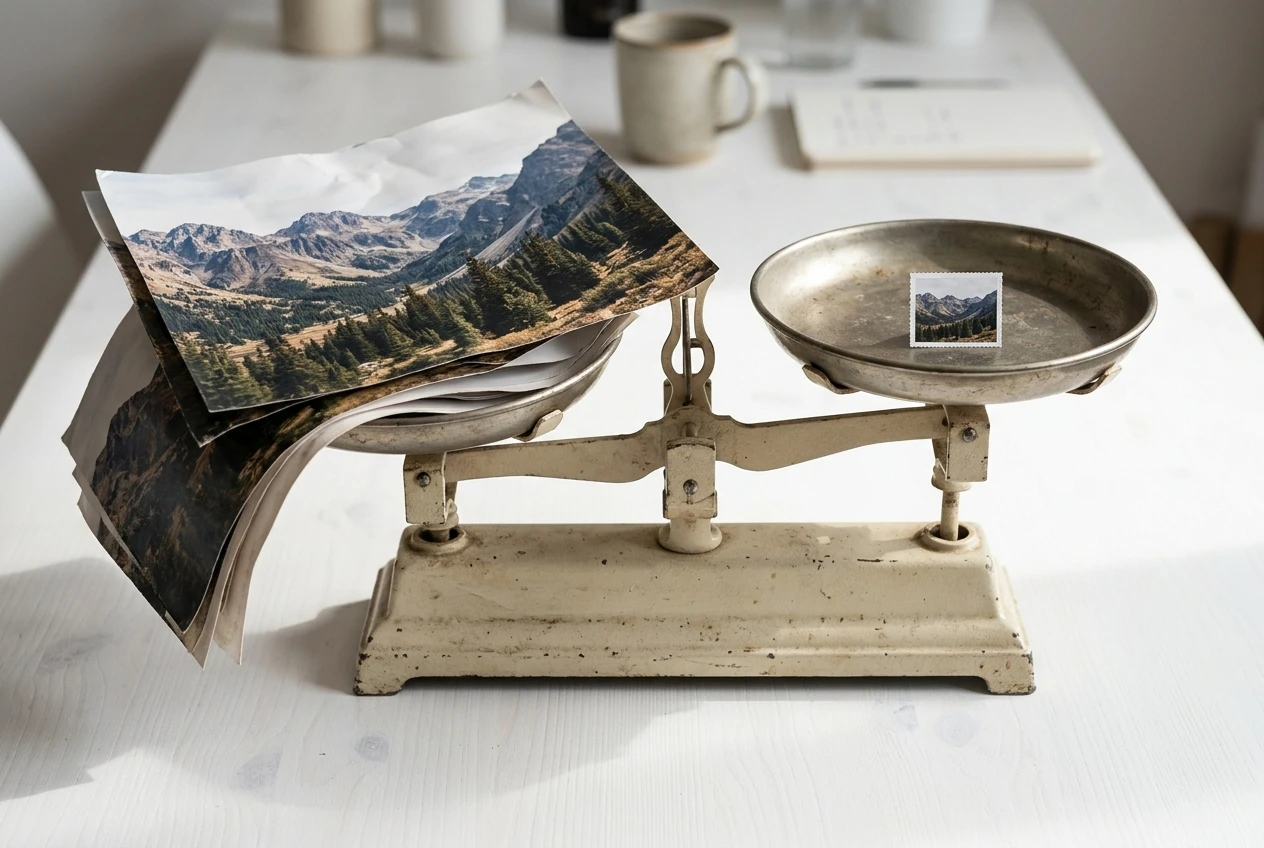
Slow pages lose visitors, and the usual cause on a new site is oversized images. A single photo straight from a phone camera can be several megabytes, many times larger than a web page needs.
The workflow has two parts.
- Resize and compress before you upload. Use Squoosh, a free browser-based tool from Google, or TinyPNG. Resize the image to roughly the width it will display at, then compress it. Modern formats such as WebP are usually smaller than JPEG at similar quality, and WordPress supports them.
- Test the result. Paste your page address into Google PageSpeed Insights. It scores the page and lists specific problems, such as images that are too large or scripts that block loading.
Run the test on your homepage and one article page after you have added real content, not on an empty site, which will always look fast. Fix the top one or two items it lists, then stop. Chasing a perfect score is a time sink, and the difference between good and perfect is rarely noticeable to a visitor.
Ignore for now: stacking multiple caching and optimization plugins. Many hosts already include caching, and running two caching systems together can cause display problems. Check what your host provides before installing anything. A CDN (a network that serves your files from locations near your visitors) also helps mainly when you have visitors spread across many countries.
Security basics: backups, SSL, strong logins and a password manager
Security for a beginner site is about four routine habits. None of them is complicated, and most take under an hour to set up once.

- Backups. A backup is a saved copy of your site you can restore if something breaks or the site is hacked. Check whether your host makes automatic backups and how long it keeps them. If it does not, install UpdraftPlus (free version) and schedule weekly backups to a separate location such as Google Drive. A backup stored only on the same server as your site is lost if that server fails.
- SSL. SSL is what puts the padlock and “https” in front of your address and encrypts data between the visitor and your site. Most hosts provide it free, often through Let’s Encrypt. Confirm it is active, and that your site redirects the plain “http” version to “https”.
- Strong logins. Never use “admin” as a username, and give your account a long, unique password. Turn on two-factor authentication if your setup offers it.
- A password manager. Bitwarden is a well-known free option, and others work as well. It generates and stores a different password for every account, so you only remember one master password. This matters because reusing a password across your site, your host and your email lets one leak open all three.
Also keep WordPress, your theme and your plugins updated. Most successful attacks on small sites use known flaws in outdated software, and updates close them.
Ignore for now: installing several security plugins at once. They can conflict with each other and slow the site. Good passwords, updates, backups and SSL cover most of what a new personal site faces.
Tracking tools: the simple analytics you need before you need anything fancier
Early on, you need to answer three questions: are people visiting, which pages do they read, and how did they find you. One free analytics tool answers all three.
Google Analytics is the standard choice. It is free and shows visitor counts, popular pages, traffic sources and rough location. Install it through your theme’s settings or a lightweight plugin, and then look at the reports once a week. Daily checking in the first months tends to produce worry, not insight, because the numbers are small and noisy.
Pair it with Google Search Console, also free, which shows which search queries lead to your pages and flags indexing problems. It becomes more useful as you publish, and it connects directly to the work described in what SEO is and why your website needs it.
One practical note: depending on where your visitors live, you may be required to disclose analytics cookies and ask for consent. Check the rules that apply to your audience, and add a clear privacy policy page.
Ignore for now: heatmaps, session recordings and A/B testing tools. They need a meaningful volume of traffic to tell you anything reliable, and with a few dozen visitors a month the results are mostly noise.
What to skip until your site has real visitors
Some tools are good but premature. If you are tempted by any of these in your first weeks, leave them for later:
- Page builder plugins and heavy theme bundles. The block editor and a lightweight theme cover the basics.
- Multiple SEO plugins. One is enough at most, and the on-page fundamentals matter more than any plugin. The guide on optimizing your website content for SEO is a better use of the hour.
- Email popups and live chat widgets. They slow pages and annoy the few visitors you have.
- Social media auto-posting tools. Post by hand until you know which platform actually sends visitors.
- Paid analytics suites and conversion tools. Free analytics answers your current questions.
- Extra caching, CDN and optimization layers. Add them when a speed test tells you they are needed.
A useful test before adding anything: write down the specific problem it solves on your site today. If you cannot, close the tab.
Your starter toolkit: a one-page checklist to build from today
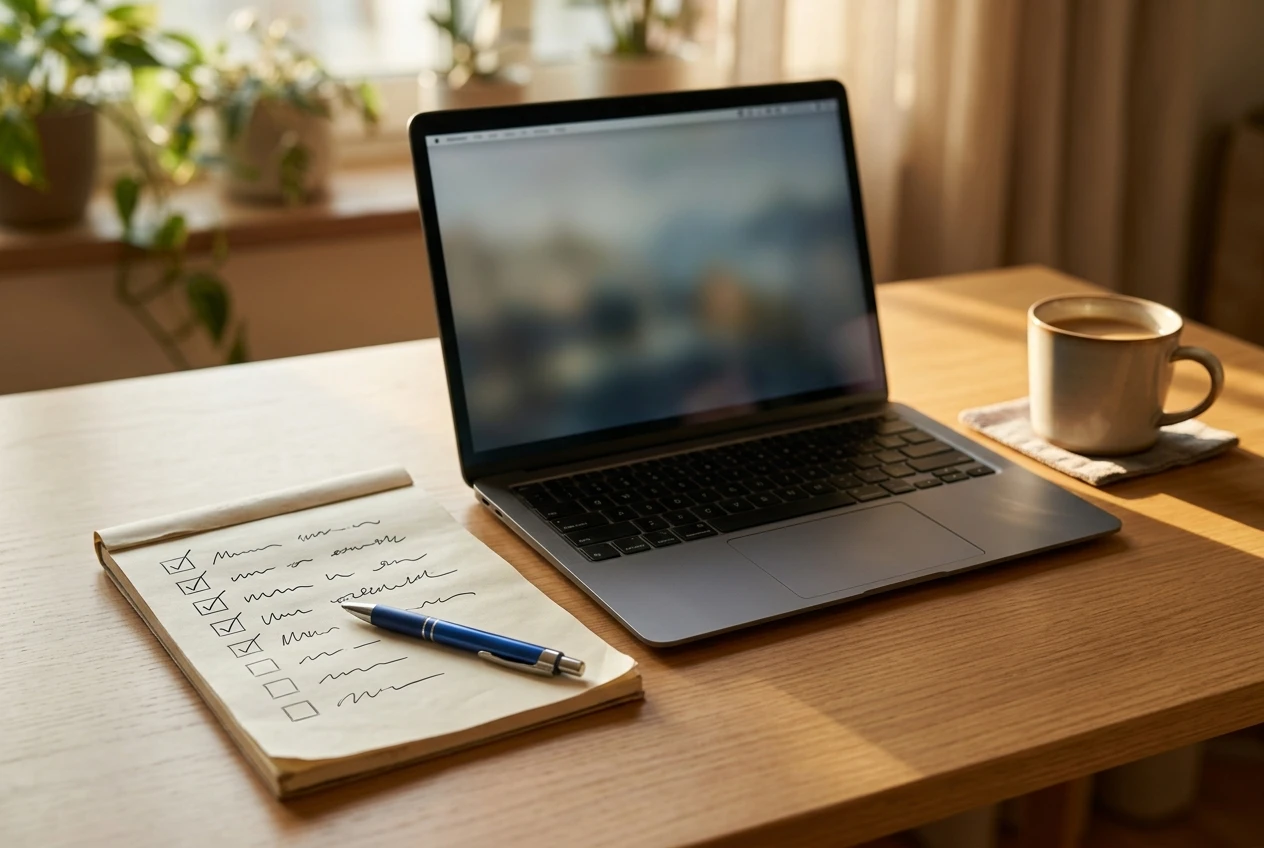
Pick one tool per stage and work through them in order. The whole list can be set up in a few focused sessions.
Build
- Install WordPress through your host
- Choose one lightweight theme and activate it
- Use the built-in block editor
Design
- Choose two fonts from Google Fonts
- Set one accent color, one text color and one background color
- Check text contrast with the WebAIM Contrast Checker
- Make header graphics in Canva, or choose photos from one free library
Speed
- Resize and compress every image with Squoosh or TinyPNG before uploading
- Run Google PageSpeed Insights on your homepage and fix the top one or two items
Security
- Confirm backups run automatically, or install UpdraftPlus
- Confirm SSL is active and “http” redirects to “https”
- Replace “admin” as a username, set a long unique password and turn on two-factor authentication
- Set up Bitwarden and move your passwords into it
Tracking
- Install Google Analytics
- Verify your site in Google Search Console
That is eleven tools or fewer, each with a clear job. Everything else can wait until your site has readers and a specific problem to solve.
Pick one tool from each stage, set up your starter toolkit, then read Choosing The Best Hosting Provider For Your Needs to settle the one piece that everything else sits on.