
Blog

  • The Best Managed WordPress Hosting for Small Business Owners Who Would Rather Not Touch Settings

    The Best Managed WordPress Hosting for Small Business Owners Who Would Rather Not Touch Settings

    Managed WordPress hosting is a hosting plan where the company that runs the server also looks after the WordPress side of it. If you run a small business site and would rather not touch settings, this is usually the right category. The choice that matters is not which host has the longest feature list. It is how much work you want to hand off, and how fast and stable the site needs to stay as traffic grows.

    This guide gives you a way to score hosts yourself, so the result does not depend on a ranking that goes stale. Plans and prices change often. Confirm the current details on each host’s own site before you decide.

    What managed WordPress hosting does for you, and what it leaves on your plate

    On a managed plan, the host typically handles the server software, security monitoring at the server level, automatic backups, and often WordPress core updates. Many also include caching, which stores ready-made copies of your pages so they load faster. Support staff are usually familiar with WordPress specifically, which matters when something breaks.

    Some things stay with you on every plan:

    • Plugins and themes. Hosts may update some of them, but a plugin that conflicts with another is still your site’s problem.
    • Content and images. A homepage with a 6 MB photo will load slowly on any server.
    • Passwords and user accounts. A weak admin password is not something a host can fix for you.
    • Your domain and email. These are often separate from hosting and renewed separately.

    Knowing this split keeps expectations realistic. “Managed” reduces upkeep. It does not remove it.

    The ease versus performance tradeoff, explained for non-technical owners

    Hosts sit along a line. At one end, everything is decided for you: a simple dashboard, few options, one-click tasks, and support that will often just fix the problem. At the other end, you get more speed headroom and control, but the dashboard has more settings, and the host expects you to know what to do with them.

    Neither end is better. A host that does everything for you may limit which plugins you can run or charge more when traffic rises. A performance-focused host may give you a fast, stable site but leave you reading documentation when you want to change a setting.

    For a non-technical owner, the practical question is this: how much will your site grow in the next two years, and who do you want to be responsible when it slows down? If the answer is “not much, and the host,” lean toward ease. If the answer is “a lot, and I’m willing to learn or pay someone,” lean toward performance.

    How to score a host: setup, dashboard, support, speed, backups, and upgrade path

    Give each host a score from 1 to 5 on the six areas below, then multiply by a weight that reflects your priorities. Use the same scale for every host so the comparison holds.

    1. Setup. How long until you have a working WordPress site? Does the host install WordPress for you, or do you do it by hand? A 5 means you can be live without reading a guide.
    2. Dashboard. Open the demo or trial if one exists. Can you find backups, your domain settings, and support within a minute each? A cluttered dashboard is a daily cost, not a one-time one.
    3. Support. Is help available through chat or phone, or only a ticket queue? Are the answers specific to WordPress? Test this before you buy (more on that below).
    4. Speed. Check what the host says about caching and server locations, then test a trial site. Speed claims on sales pages are not measurements.
    5. Backups. How often are they made, how long are they kept, and can you restore one yourself in a few clicks?
    6. Upgrade path. When your traffic grows, what does the next plan look like, and does moving up require migrating the site?

    A simple weighting for a non-technical owner: count setup, dashboard, and support at double weight, and the other three at normal weight. If your site is already busy, double speed and upgrade path instead. The total is only useful as a comparison between hosts you scored the same way.

    For the speed side of this, the fixes on your own pages matter as much as the server. The article on why a faster WordPress site sells more covers what to change once the hosting is in place.

    Hosts that lean toward ease: who they suit and where they pinch

    Hosts in this group are built around a short path from signup to a finished site. You will usually see guided setup, a simplified dashboard, bundled extras such as a free certificate for secure browsing, and support staff who will do small tasks for you.

    They suit owners who want to spend their time on the business and treat the website as a tool. A consultant, a local tradesperson, or a small service business with a handful of pages fits well.

    Where they pinch:

    • Plugin restrictions. Some hosts block plugins that duplicate their own features or use heavy server resources.
    • Traffic limits. Plans often count monthly visits, and going over can trigger a required upgrade.
    • Renewal pricing. The first-term price and the renewal price can differ. Find the renewal figure on the host’s pricing page before you commit.
    • Less visibility. When the site slows down, a simplified dashboard may not show you why.

    Check each of these points on the host’s current plan page, since all of them vary by company and by plan.

    Hosts that lean toward performance: who they suit and what they expect from you

    Performance-leaning hosts put the weight on server speed, stability under load, and flexibility. They tend to offer more control over caching, staging copies of your site for testing changes, and more room for plugins and traffic.

    They suit owners whose site earns money directly and would lose sales from slowness: a busy booking calendar, a growing shop, or a content site with rising traffic.

    What they expect from you:

    • Comfort with a longer menu of settings, or a willingness to follow written guides.
    • Decisions about caching and image handling that an ease-focused host would make automatically.
    • More responsibility for testing updates before they go live, usually on a staging copy.

    Support quality varies a lot here. Some performance hosts offer excellent technical help, but it may be aimed at people who already speak the vocabulary. Score support honestly on whether the answers make sense to you.

    If you want to compare broader host types before narrowing to managed WordPress, the guide on choosing the best hosting provider for your needs covers the wider field.

    Which type fits which business: a brochure site, a booking site, a small online shop

    Three small shopfronts side by side on a sunny street: a quiet consultant's office with a plain sign, a yoga studio with a paper appointment book open on its window ledge, and a boutique with a stocked window and a checkout counter inside, each with a different door and awning color, golden morning

    A brochure site (a home page, services, contact, and perhaps a blog) rarely needs more than a modest plan. Lean toward ease. The load is light, and the most valuable thing the host gives you is not having to think about it.

    A booking site depends on a scheduling plugin that runs actions every time a visitor checks availability. These pages cannot be served as stored copies the way static pages can, so server quality shows up directly. Lean toward the middle or toward performance, and weigh backups and support more heavily, because a broken calendar costs you appointments.

    A small online shop has the same issue with carts and checkout, plus the need for stable security and fast restores. Weight speed, backups, and upgrade path higher. A host that makes you migrate when you outgrow your plan creates risk at exactly the wrong time.

    If you are unsure which category you are in, pick the lighter one and make sure the upgrade path scores well. That keeps the first decision cheap to change.

    Questions to ask support before you pay, and the red flags in the answers

    Use live chat or the pre-sales contact form. How the host answers is part of what you are buying.

    • “What is the renewal price for this plan, and what does the first term cost?” A clear number is good. A reply that only repeats the introductory offer is a flag.
    • “If I go over the traffic limit, what happens?” Look for a straight answer about whether the site stays up, gets throttled, or triggers a charge.
    • “How often are backups made, and can I restore one myself?” Red flag: backups that cost extra or need a support ticket to restore.
    • “Will you move my existing site for free?” Ask what is included, how long it takes, and whether there is downtime.
    • “Are there plugins I cannot use?” Ask for the list, or where it is published.
    • “What happens if the site is hacked?” Find out whether cleanup is included or billed separately.

    Red flags across all answers: replies that dodge the question, pressure to buy before you finish asking, answers that contradict the plan page, and long waits for a reply when you are a prospective customer. Slow answers now rarely get faster after you pay.

    How to move your site without losing traffic, and what to check in the first week

    Most losses during a move come from avoidable mistakes. The sequence below protects your search visibility and your visitors.

    Two moving boxes on a desk, one labeled by a handwritten tag as old and one as new, with a small ring of keys and a paper checklist with ticked boxes between them, a laptop out of focus in the background, bright natural light, calm blue and cream palette.
    1. Back up the current site and keep a copy somewhere other than the old host.
    2. Let the new host copy the site if they offer it, or use their migration tool. Keep the old hosting active until the move is verified.
    3. Test the new copy before switching. Most hosts give you a temporary address or a way to preview. Click through every page, submit your contact form, and test checkout or booking if you have either.
    4. Change the domain’s DNS settings only when the copy works. These settings tell browsers where your site lives, and the change can take hours to spread.
    5. Keep your URLs identical. The same page addresses mean search engines and any links to your site keep working.

    In the first week, check these things:

    • Open the site on a phone and on a computer, and confirm every page loads.
    • Send a test message through each form and confirm it arrives.
    • Confirm the secure padlock appears and there are no mixed-content warnings.
    • Confirm a backup has run on the new host, and try restoring one if the dashboard makes that easy.
    • Look at your search performance reports for sudden drops in indexed pages or visits.
    • Review security basics, since a new host does not replace sensible habits. The guide on securing your WordPress website without being a technical person covers what to set up.

    Cancel the old hosting only after a week or two of normal running, once you are sure nothing was left behind.

  • The Pages Your Business Website Needs Besides Home and About, and Why Visitors Check for Them

    The Pages Your Business Website Needs Besides Home and About, and Why Visitors Check for Them

    A visitor who lands on a small business website has usually never heard of you. Within a few seconds they are asking practical questions: is this a real business, can I reach someone, what does it cost, and what happens to my details if I type them in. A homepage and an About page answer only some of those.

    The essential pages for a business website are the ones that answer the rest. This guide covers each of them, what it tells a visitor, and whether it is a must-have or something you can add later. The call on each page is based on one test: does a visitor need it to decide whether to trust you or to take the next step?

    Why a homepage and About page alone leave visitors unsure about you

    The homepage says what the site is about. Your About page says who is behind it. Neither tells a visitor how to contact you, what you sell, how you handle their data, or what other customers think.

    Visitors fill those gaps by looking for the pages that usually carry the answers. They check the footer for a privacy link, the menu for a contact option, and the page itself for any sign that someone maintains the site. When they find nothing, most will not write to ask. They leave.

    Each page below does one job in that decision. Together they make a small site look like a business that is open, reachable, and run by someone who expects customers.

    Contact page: the one page that turns interest into a conversation

    Verdict: must-have.

    A contact page gives an interested visitor a way to act. Without one, a person with a question about price, availability, or fit has nowhere to take it, and a question that goes unasked is usually a lost sale.

    A useful contact page is short and contains:

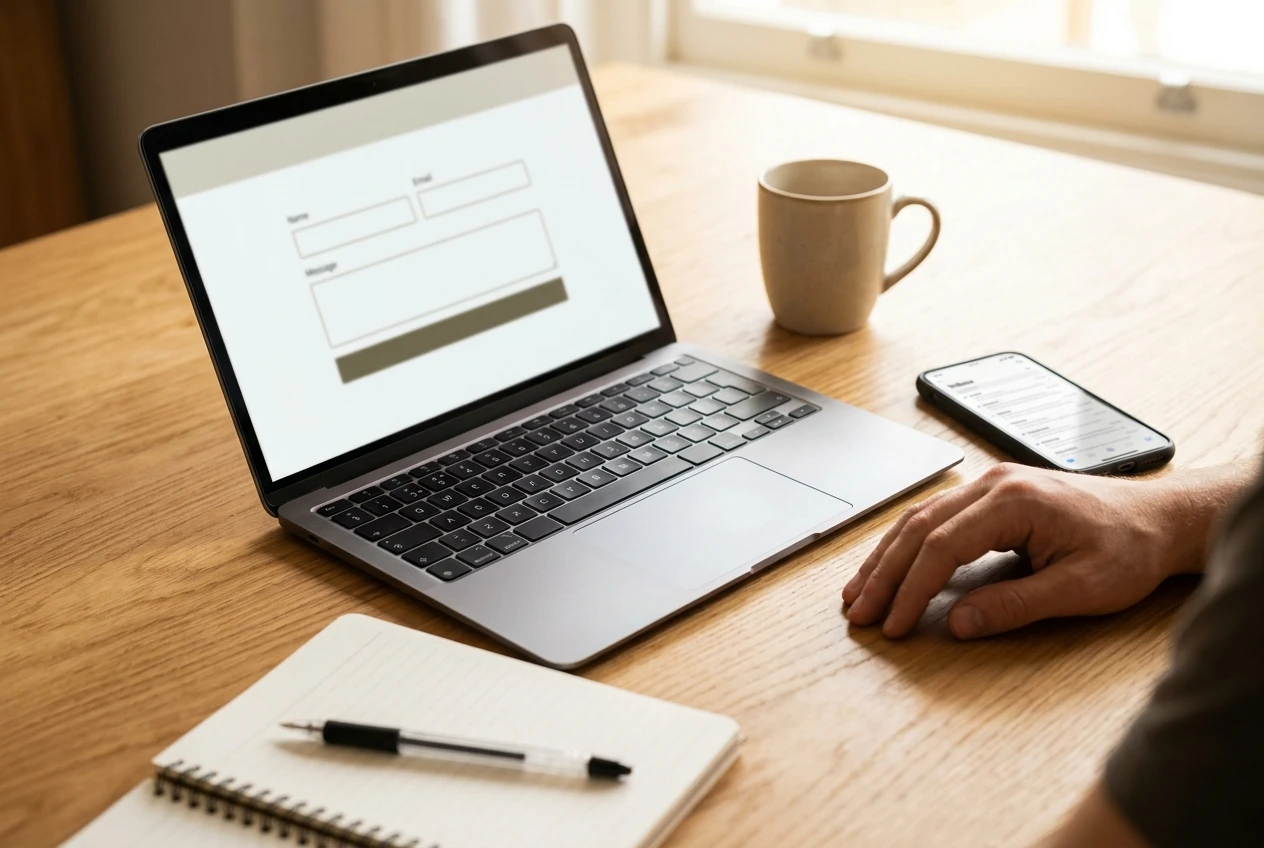
    • A simple form with name, email, and message fields. Fewer fields mean more people finish it.
    • A direct email address for people who prefer to write from their own mail app.
    • A line saying when to expect a reply, such as “within two business days,” but only if you can keep to it.
    • A business address or phone number if your business has them and you are comfortable sharing them.

    Do not list contact methods you will not monitor. An unanswered message hurts more than not offering the option. If you run a purely online business, a form and an email address are enough.

    Link the contact page from the main menu and from the footer. It should be reachable from every page without scrolling around.

    Services or products page: say what you offer and what happens next

    Verdict: must-have, unless your homepage already lists every offer in detail.

    Homepages tend to describe a business in general terms. A services or products page gets specific. It says what you sell, who it is for, what it costs or how pricing works, and what the buyer should do next.

    Visitors read this page for two reasons. They want to confirm you offer what they came for, and they want to know what buying involves. A page that lists services but never says how to start leaves them guessing, and guessing is where they stop.

    For each offer, cover these points:

    Three neatly arranged handmade product boxes with kraft paper tags and a small price card on a pale linen table, next to a tablet showing a booking button, soft daylight and muted green and cream colours.
    1. What it is, in one or two plain sentences.
    2. Who it suits and what problem it solves.
    3. The price, or a clear statement of how you quote one.
    4. The next step, with a button or link that goes to a checkout, booking page, or the contact form.

    If you have several offers, give each its own section on one page. Once any single offer needs a long explanation, give it its own page and link to it from the overview.

    If your site earns through affiliate links, this page can be a short guide to what you recommend and why. The principles in how to write affiliate reviews that convert because they help apply here too: describe what the product does for the reader before you ask them to click.

    Privacy policy and terms: the legal pages visitors and platforms look for

    Verdict: privacy policy is a must-have. Terms are a must-have if you sell anything, and a nice-to-have otherwise.

    A privacy policy explains what information your site collects and what you do with it. A site collects more than most owners realize: contact form entries, comments, email signups, analytics data, and cookies set by plugins or embedded content.

    Visitors rarely read the policy, but many check that it exists, and a missing one makes a site that asks for personal details look careless. It also matters beyond trust. Ad networks, analytics providers, email services, and payment processors commonly require a published privacy policy, and privacy laws in many places require one when you collect personal data. The rules differ by country and region, so check the requirements that apply to you. If your situation is complicated, ask a qualified professional.

    WordPress includes a privacy policy page template under Settings, then Privacy, which gives you a draft to edit. You can also start from the privacy policy page on this site to see the typical sections. Whatever you start from, edit it so it describes your actual site. A policy that mentions tools you do not use, or leaves out ones you do, is worse than a short accurate one.

    Terms and conditions set the rules for using your site or buying from you. They cover things like refunds, delivery, liability, and what visitors may do with your content. If you take payments, sell services, or run a membership, publish terms so both sides know what was agreed. A simple information site can often manage without them.

    If you earn commissions from affiliate links, say so clearly. Many places require disclosure of those relationships, and visitors respond better to a plain statement than to finding out on their own. A short disclosure page, linked from the footer, covers it, and a sentence near the links themselves is better still.

    Link both legal pages from the footer so they appear on every page. Visitors expect to find them there.

    Testimonials and FAQ pages: answering doubts before they cost you a sale

    Verdict: both are nice-to-haves that become close to must-haves once you sell something.

    Testimonials answer the question “has anyone else done this and been satisfied?” A new visitor has only your word. A quote from a real customer is evidence from someone else.

    You can only use what you have. Never write testimonials yourself or attribute quotes to people who did not say them. If you have no customers yet, leave the page out. A short, honest site is better than one with invented praise. When you do have feedback, ask permission to publish it, and include the person’s name or first name and what they bought, since specific quotes are more believable than general ones.

    A pinboard on a studio wall covered with handwritten customer thank-you notes and index cards of questions, each with a short pencilled answer, lit by warm lamp light with a plant in the corner.

    A FAQ page answers the questions people would otherwise email you, or never ask and leave over. Write it from real questions. Good sources are messages you receive, questions friends ask when you describe the business, and the doubts you would have buying from a stranger online. Typical topics include:

    • Pricing and payment methods
    • How long delivery or setup takes
    • Refunds and cancellations
    • What happens after someone contacts you
    • Where you operate or who you serve

    Keep each answer to a few sentences and link to the relevant service, contact, or terms page when a longer answer exists. A FAQ built from real questions also helps with search, since visitors phrase their questions the way they type them into Google.

    You do not need a standalone testimonials page at first. A few quotes on the homepage and services page do the same work until you have enough to fill a page.

    The 404 page and other small pages that signal care

    Verdict: nice-to-have, and quick to do.

    A 404 page is what visitors see when they open a link that does not exist, usually because of a mistyped address or a page you deleted. Most WordPress themes include a default one, and its quality varies a lot. Some show a blank message with no navigation, which leaves the visitor on a dead end.

    A quiet country road ending at a wooden signpost with several arrows pointing to different paths, early morning mist and soft golden light, conveying a lost visitor being redirected to somewhere useful.

    A useful 404 page says plainly that the page was not found, then gives the visitor somewhere to go: a link to the homepage, links to your main pages, and a search box. Many themes let you edit this page, and a plugin can do it if yours does not. It takes under an hour and keeps people on the site who would otherwise close the tab.

    A few other small pages also show that someone looks after the site:

    • Thank-you page. After a form submission or signup, a confirmation page tells the person it worked and what happens next. It is also the natural place to invite them to join your email list.
    • Disclosure or cookie notice. Add one if your analytics or ad tools set cookies, and if the rules where you operate call for it.
    • Blog or resources page. Add it once you have articles to show. An empty blog page makes a site look abandoned, so do not publish one with no posts.

    Which pages to build first, and how to link them so people can find them

    Build in the order of what a visitor needs to act and to trust you:

    1. Contact page. Without it, nobody can reach you.
    2. Services or products page. It says what you offer and how to buy.
    3. Privacy policy. Publish it before you collect any email addresses, form entries, or analytics data.
    4. Terms, if you sell anything.
    5. FAQ. Write it as real questions come in.
    6. Testimonials, once you have real ones.
    7. Custom 404 and thank-you pages. They are quick finishing touches.

    Pages that visitors cannot find do not help, so linking matters as much as writing. Put your main pages in the top menu: services or products, About, and contact. Keep the menu short, since a long list makes each item harder to notice. Put the legal pages, FAQ, and contact details in the footer, which appears on every page and is where visitors look for them.

    Within pages, link where a question comes up. A service description can link to the FAQ for pricing details, and the FAQ can link back to the contact form. Add a clear call to action to every important page, so no page ends without telling the visitor what to do next.

    Check the finished set the way a stranger would. Open the site on a phone, look for the contact option, find the privacy policy, and try to work out what you sell and what it costs. Fix whatever takes more than a few seconds, and compare the result with the usual website design mistakes that send visitors away.

    Open your Hub gameplan and add a task for each missing page, starting with the contact page, then build them in the order the article suggests.

  • How to Write Affiliate Reviews That Convert Because They Help, Not Because They Push

    How to Write Affiliate Reviews That Convert Because They Help, Not Because They Push

    Pushy affiliate content has a short shelf life. A countdown timer, a “best ever” headline and three exclamation marks in a row all tell the reader the page was written for the commission. People who read website building and hosting reviews have usually read several already, and they know what a sales page sounds like.

    The alternative is a review built around one reader’s specific problem, written with enough honesty that the reader trusts the recommendation. This article gives you a repeatable structure for that kind of review, with example wording you can adapt, and covers how to write affiliate content that converts without leaning on hype.

    Why pushy affiliate content stops working once readers recognise it

    Urgency tricks work only on readers who have not seen them before. A reader comparing hosting plans has already met “limited time only” on a dozen sites, so the phrase now signals that the writer is selling. Once that happens, the reader discounts everything else on the page too, including the parts that are accurate.

    Hype also fails because it gives the reader nothing to decide with. “The best hosting on the market” contains no information. A reader choosing between two plans needs to know what each is good at, what it costs them in effort, and whether their own situation fits. A page that withholds those details forces the reader to leave and look elsewhere, and the commission goes to whoever answered the question.

    There is a second cost. A personal website runs on one person’s credibility. If a reader follows your recommendation and the product turns out to be wrong for them, they remember who sent them there. Recommending the right tool to the right person, and saying so plainly, protects the one asset a small site has.

    Start with the reader’s problem, not the product’s feature list

    A feature list describes the product. A problem describes the reader, and the reader is who you are writing for. Begin the review with a sentence that a specific person would recognise as their own situation.

    Compare these two openings for a hosting review:

    • Feature-first: “This host offers SSD storage, a free SSL certificate and one-click WordPress installs.”
    • Problem-first: “You have a WordPress site with a handful of pages, your current host feels slow, and you want to move without breaking anything or paying for features you will never use.”

    The second opening filters the audience. Readers who match it keep reading, and readers who do not match it leave, which is a good outcome for both sides. The features still appear later, but each one is attached to the problem it solves.

    To find the problem, think about the questions beginners actually ask before buying website building and hosting tools:

    • Can I set this up without technical help?
    • Will it still suit me when the site grows?
    • What will I pay after the first term ends?
    • How hard is it to leave if I change my mind?

    Pick one of those, or a sharper version of it, and make it the spine of the review. One review should answer one problem. If you try to answer all of them, the page becomes a spec sheet again.

    Say who the product is not for, and watch trust go up

    A recommendation with no exclusions sounds like an advertisement. A recommendation that says “this is a poor fit if you need X” sounds like advice, because only someone who has looked closely at the product can say where it stops being useful.

    Give the exclusion its own short section or a clearly marked paragraph, so readers can find it quickly. It should name a real type of reader and a real reason. Some forms it can take:

    • A product that is simple to set up may offer less control, so it suits readers who want a finished site quickly but not those who want to customise the server.
    • A low introductory price may not suit a reader who needs to know exactly what they will pay at renewal. Tell them to check the renewal price on the provider’s own page before buying.
    • A tool built for a single site may be a poor fit for someone planning several.

    Only write exclusions you can support from the product’s own documentation or from your own use. If you do not know where a product falls short, you are not ready to review it yet, and more reading or testing will fix that.

    Readers who learn they are not the right audience will often thank you, and they will remember the site next time. Readers who are the right audience buy with more confidence because they saw you point out the downsides. Both outcomes are better than a sale that turns into a complaint.

    Build the review around a real test: what you did, what happened, what you would change

    A review is believable when it describes an actual use of the product. The structure is simple: what you did, what happened, and what you would change. It works only with real material, so do the testing before you write, and keep notes as you go.

    Here is what to record for a hosting or website building tool:

    A laptop on a wooden desk showing a half-finished website dashboard, with a handwritten notebook open beside it containing timestamps and scribbled observations, a pen resting on the page, in soft daylight from a side window.
    1. What you did. The task, in plain terms: set up a new site, migrate an existing one, install a theme, connect a domain. Note the date and the plan you used.
    2. What happened. The result, including anything that went wrong. Record how long each stage took, which settings you had to find, and which support answers you received.
    3. What you would change. The thing you would do differently next time, or the thing the provider could improve. This is the part readers value most, because it shows judgment.

    Do not write a test you did not run. If you have not used a product, you can still write a useful piece based on the provider’s own documentation and published plans, but say clearly that it is a comparison of what the provider states and not a report of your own use. Readers accept that distinction easily. They do not forgive a pretended test.

    Screenshots of your own dashboard, taken during the test, make the account checkable. They also give you proof to point to if a reader asks how you reached a conclusion. For related groundwork, the guide on website building tools for beginners explains which tools are worth testing in the first place.

    Rewrite the pushy line: five sales-y sentences and their honest versions

    Most pushy writing lives in a handful of habitual sentences. Replace each with a sentence that states a fact or a condition the reader can check. The honest versions below show the form. The specifics in them are illustrations: use a version only if your own test or the provider’s published information supports it.

    A pen with red ink crossing out lines on a printed draft page lying on a table, with a second clean page next to it marked with small neat annotations in blue, shot close up in neutral light to show a rewrite in progress.

    1. The urgency line

    • Pushy: “Buy now before this deal disappears!”
    • Honest: “Prices and offers change, so check the current plan price on the provider’s page before you decide.”

    2. The superlative

    • Pushy: “The best hosting you will ever find.”
    • Honest: “This host suits a small personal site with modest traffic. If you expect large traffic spikes, compare it with plans built for that.”

    3. The guaranteed result

    • Pushy: “Your site will be blazing fast and rank on page one.”
    • Honest: “Hosting affects how quickly pages load, but themes, images and plugins affect it too. Speed is one input to search results, not a promise of them.”

    4. The vague endorsement

    • Pushy: “I love this tool and you will too!”
    • Honest: “If your test went that way, write: ‘Setting up the first page took about an hour with this builder. The editor was easy to learn, but I could not find a way to export my content, so consider that before you commit.’”

    5. The pressure to act

    • Pushy: “Don’t miss out, click here to get started today.”
    • Honest: “If the situation I described matches yours, the plan details are on the provider’s site. If it does not, the alternatives section below may fit better.”

    Notice what changed in each pair. The honest version carries a condition, a limit or a checkable detail, and the pushy version carries only a push. Reading your draft aloud and marking every sentence that asks the reader to feel something instead of know something is a quick way to find lines to rewrite.

    Place affiliate links and the disclosure where readers actually decide

    Readers decide at specific moments: after you describe the problem and the product that solves it, after you state the price or the limits, and at the end of the review. Place links at those points, attached to descriptive anchor text such as “the plan details on the provider’s site.” Avoid links that say “click here,” which tell the reader nothing about where they lead.

    Do not scatter a link into every paragraph. Two or three well-placed links usually serve readers better than ten, and a page packed with links looks like a link directory.

    Put the disclosure near the first affiliate link, in plain words, before the reader clicks. A sentence such as “If you buy through links on this page, I may earn a commission at no extra cost to you” does the job, provided it is true for the programs you use. A disclosure buried in the footer reaches almost nobody. Rules about disclosure differ between countries and between advertising bodies, so read the guidance that applies where you publish and where your readers live, and check each affiliate program’s own terms.

    Clear disclosure helps conversion as well as compliance. A reader who knows how you earn money and sees you recommending the product anyway, with its limits stated, has more reason to believe the rest of the page.

    Link the review into the pages that already build trust on your site

    A review page rarely persuades on its own. Readers who are weighing a purchase often look at who wrote it, whether the site covers the topic in depth, and whether the advice holds together across pages. Connect the review to those pages so they can check.

    Link only where the reader gains something. A link that exists to move people around the site, and not to answer their next question, adds clutter. Internal links also work in reverse: your trust-building pages can point to the review for readers who are ready to choose.

    Check what is working: the three numbers worth watching after you publish

    Once the review is live, resist the urge to watch everything. Three numbers tell you most of what you need.

    A small desk calendar with several weeks crossed off, next to a tablet showing a blurred analytics screen and a cup of tea, evening lamp light, conveying patient review of results over weeks rather than hours.

    1. Visits to the review page, and where they come from. If the page gets few visits, the problem is discovery, not persuasion. Check whether people are finding it through search or through links from your other pages, and adjust the title and headings to match the problem readers are searching for. The article on how to optimize your website content for SEO covers that side.

    2. The share of visitors who click an affiliate link. Divide link clicks by page visits. A low share suggests the review is not matching readers to the product, or the links sit where nobody is deciding. Move the links, tighten the opening so it names the problem more precisely, or check whether the exclusions section is sending the wrong readers away too early.

    3. Sign-ups or sales per click. Your affiliate program’s dashboard usually reports this. A healthy click share paired with few sign-ups often means the reader reached the provider’s page with expectations your review set that the page did not meet. Reread your review against the provider’s current page and correct anything out of date, since plans and prices change.

    Look at these numbers over weeks, not hours, because a single day of data from a small site says very little. Change one thing at a time, so you know what caused any movement. Revisit each review on a schedule and update the details that age fastest, which are prices, plan limits and screenshots.

    A review that opens with the reader’s problem, says plainly who the product does not suit, reports a real test, and discloses how you earn will keep working long after a countdown-timer page has lost its readers.

  • Why Your Brand New Website Needs an Email List on Day One

    Why Your Brand New Website Needs an Email List on Day One

    Most beginners assume an email list is something you build after the traffic arrives. The reasoning sounds sensible: with ten visitors a day, who is there to sign up? But the order works against you. The first people who find a new site are often the most interested in it, and if nothing on the page lets them stay in touch, most of them are gone for good.

    This guide covers email list building for beginners with a small site. It describes the smallest setup that works: one signup form, one free thing to offer, and one welcome email. You can finish it in an afternoon, and it will still be useful when your traffic grows.

    Why a site with ten visitors a day should still collect emails

    Ten visitors a day is about 300 a month. If even a few of those people want to hear from you again and you give them no way to say so, you lose them. They might bookmark your site. Most will not, and a bookmark is easy to forget.

    An email address is a direct line to one interested person. You do not need an algorithm to show your next post to them, and they do not need to remember your URL. When you publish something new, it lands in their inbox.

    Starting early also gives you practice at a small scale. Your first subscribers show you what people actually want from your site. When you write to 15 people, you can reply to each one who writes back, and their answers tell you what to build next. A list started at 5,000 subscribers has none of that closeness.

    There is also a plain timing reason. Every day without a form is a day of visitors you cannot reach again. A form added now costs you an hour. Waiting until the site is popular costs you every early reader.

    Rented traffic versus owned traffic: what happens when rankings or social reach drop

    Search rankings and social media reach are controlled by someone else. Google decides where your page appears, and a social platform decides how many followers see your post. Either can change its rules, and your visitors can fall without you having changed anything on your site. Search traffic also takes time to arrive for a new site. If you want the background on how that works, what SEO is and why your website needs it covers it.

    An email list works differently. You hold the addresses, and you can export them from your email tool and move them to another one. If you switch providers, the list goes with you. If a platform shuts down or changes its terms, your subscribers are still reachable.

    This does not mean you should ignore search or social media. Both bring new people to your site. The point is what happens to those people once they arrive. Without a signup form, a visit that came from a ranking ends when the reader closes the tab. With one, a visit can become a relationship that does not depend on where you rank next month.

    One caution: owning a list does not guarantee delivery. Emails can land in spam folders, and people stop opening messages they no longer want. A list needs ongoing care, which the later sections cover.

    Pick one reason for people to subscribe (and keep it small)

    People rarely give an email address for “updates” or “news.” They give it when they get something they want. That something is often called a lead magnet, which just means a small free item offered in exchange for an address.

    Keep yours small enough that you can make it in a few hours. A beginner with a personal website has several realistic options:

    A single printed one-page checklist with a few handwritten ticks, a pencil and a small mug of coffee on a clean pale wooden desk, shot from above in warm morning window light.
    • A one-page checklist related to your topic, such as a checklist for launching a personal website.
    • A short template the reader can copy and fill in.
    • A three-part email mini-course that teaches one narrow skill.
    • A resource list of the tools or sites you think are worth a reader’s time.

    Choose based on a single question: what is the first problem a new visitor to your site wants solved? Offer the smallest useful answer to that. A checklist that fixes one problem will beat a long guide that tries to cover everything, and the reader is more likely to finish it.

    You can also skip the free item and simply promise something specific, such as one short email a week on a topic. This works, but a concrete free item gives the reader a reason to act today instead of someday.

    Write the offer in one sentence that names the benefit: “Get a one-page checklist for launching your site, free by email.” A reader should understand the deal without scrolling.

    Where to put your first signup form on a personal website

    A single form in a place readers will see is better than five forms scattered around. For a small site, these positions work best, in rough order of usefulness:

    1. At the end of each post or article. A reader who reached the bottom enjoyed the page. This is the moment they are most likely to want more.
    2. On your About page. People who click About are curious about who runs the site, which makes them open to staying in touch. Your About Me page is a natural place for a short invitation.
    3. In the sidebar or near the top of the home page. This catches visitors who decide quickly.

    Start with one of these, not all three. Once you have a form working, you can add a second location and see whether signups change.

    Keep the form itself short. Ask for an email address, and at most a first name. Every extra field means fewer people finish it. Put a short line above the form that says what they get and how often you will write, and label the button with the benefit, such as “Send me the checklist,” instead of the default “Submit.”

    A smartphone held in one hand showing a simple blog post page that ends in a short, uncluttered signup box with a single field and a bright teal button, with a blurred desk and laptop behind it in soft daylight.

    Test the form on your phone as well as your computer. Many visitors will see it there first, and a form that is cramped or hard to tap will lose them.

    Choosing an email tool without overbuilding: what you need at the start

    You need an email service provider, which is the tool that stores your subscribers, sends your emails, and handles unsubscribes. You should not send newsletters from your personal inbox. A dedicated tool manages consent records and unsubscribe links, and it sends to many people without looking like spam.

    At the start, you need only these features:

    • A signup form you can embed in your site, or a hosted form page you can link to.
    • The ability to send an automatic welcome email when someone joins.
    • A one-click unsubscribe link added to every email.
    • A way to export your subscriber list.

    Many providers offer a free plan for small lists, but plans and limits change, so check the current terms on the provider’s own pricing page before you commit. Look especially at what happens when your list grows past the free limit, and confirm that you can export your list if you decide to leave.

    You can skip landing page builders, complex segmentation, and multi-step automation for now. With 20 subscribers, you have nothing to segment. If you want a wider view of which tools are worth your time and which are not, the guide to website tools a beginner actually needs goes through that decision.

    If your site runs on WordPress, many email tools provide a plugin or a code snippet that you paste into a page. Either route works. Pick whichever you can finish today.

    Write a welcome email that gets read

    The welcome email is the one message every subscriber receives, and it arrives while their interest is highest. Set it up as an automatic email so it sends the moment someone signs up.

    A welcome email that works has a few parts:

    • A clear subject line. Say what is inside: “Your launch checklist is here.” A subject that matches the offer tells the reader it is the email they were waiting for.
    • The promised item first. Put the download link or the first lesson at the top. If you make people read three paragraphs before they get what you promised, some will give up.
    • A short introduction. Write two or three sentences on what your site covers and who it is for. Use only facts about your site and your work that you are comfortable sharing publicly.
    • What to expect. Tell them how often you will write and about what. If you plan one email a week, say so.
    • One question. Ask something easy to answer, such as “What are you working on with your site right now?” Replies show you what your readers need, and they tell email providers that people want your messages.

    Write in plain language, as if you were writing to one person. Keep it short, since the reader came for the free item and not for a long letter. Use a real sender name that people will recognize when the next email arrives, rather than a generic company label.

    Before you publish the form, subscribe with your own address and read the email as a subscriber would. Check that the link works, the formatting looks right on a phone, and the message did not go to spam. Check your spam folder too, because that is where a first test email sometimes lands.

    Stay on the right side of consent and your privacy policy

    Collecting email addresses means handling personal data, and the rules depend on where you and your subscribers live. Laws such as the GDPR in Europe and the CAN-SPAM Act in the United States set different requirements. This article is not legal advice, so check the rules that apply to you. A few habits are sensible almost everywhere:

    • Ask clearly. Tell people next to the form what they are signing up for and what you will send.
    • Only email people who asked. Do not add friends, colleagues, or contacts from other places to your list without their agreement.
    • Make leaving easy. Every email should include a working unsubscribe link, and you should honor requests promptly.
    • Keep a record. Your email tool usually stores when and how each person joined. Leave that setting on.
    • Do not promise one thing and send another. If the form says a weekly checklist, do not start sending promotions for unrelated products.

    Your site should also have a privacy policy that says what data you collect, why, and how people can contact you about it. Link to it near your signup form, with a short line such as “We use your email only to send the checklist and occasional updates. Read our privacy policy.” If the policy on your site is still a default template, read it and update it so that it describes email collection and the tool you use. If you are unsure what your location requires, ask a qualified professional.

    What to do in your first 30 days with your first 20 subscribers

    Twenty subscribers is a realistic first target for a small site, and you can reach it with a plan that is mostly about steady habits. Here is a simple schedule.

    A paper wall calendar covering one month on a corner of a desk, with four colored sticky notes marking the weeks and twenty small pencil dots in the margin, beside a notebook and an open laptop, in warm afternoon light.

    Days 1 to 3: set up. Choose your tool, build the form, create the free item, and write the welcome email. Subscribe yourself to confirm it all works, then place the form on one page.

    Days 4 to 10: tell people. Mention your list wherever you already talk about your site. Add a line to the end of your latest posts, and tell friends or colleagues who would find the topic useful. Make sure each person is told they are signing up for email.

    Days 11 to 20: write to them. Send your first regular email, even if it goes to only a handful of people. Keep it short: one useful tip, one link to a page on your site, and a question. Read any replies and answer each one personally.

    Days 21 to 30: look and adjust. Check which page produced the most signups and whether the free item is being downloaded. If one location works better, move your effort there. If few people sign up, change one thing, such as the offer wording or the form position, and wait a week before changing anything else. If readers asked questions, write your next post or email around the most common one.

    Resist the urge to measure everything. With 20 people, a single reply tells you more than a spreadsheet of percentages. Your job in the first month is to prove to yourself that the system works, that people join, receive the email, and sometimes write back.

    Add one signup form to your site today and send yourself the welcome email to check that it works.

  • Why a Faster WordPress Site Sells More, and the Fixes That Actually Move Conversions

    Why a Faster WordPress Site Sells More, and the Fixes That Actually Move Conversions

    A PageSpeed score of 95 does not guarantee that anyone subscribes, books or buys. Visitors don’t see your score. They see a screen that either shows them what they came for quickly or makes them wait, and the waiting tends to happen at a few specific points on a few specific pages.

    This article covers how to speed up a WordPress site for better conversions by working on those points first. You will find the pages where slowness costs you most, make a handful of free or low-cost fixes, and measure whether sign-ups or sales actually rose. You don’t need to be a developer for any of it.

    Why a good speed score can still leave you with no sign-ups

    A speed score is a summary of one test, run on one simulated device and connection, and it blends several measurements into a single number. A page can score well and still hide its sign-up form behind a script that loads last. Another page can score in the 60s and convert fine because the headline, the button and the form appear almost immediately.

    Three measurements in the report matter most for visitors, and Google calls them Core Web Vitals:

    • Largest Contentful Paint (LCP): how long the biggest visible element, usually a hero image or main heading, takes to appear. Google considers 2.5 seconds or less good.
    • Interaction to Next Paint (INP): how quickly the page responds when someone taps or clicks. Google’s good threshold is 200 milliseconds or less.
    • Cumulative Layout Shift (CLS): how much the page jumps around while loading. A score of 0.1 or lower is considered good.

    Each one maps to something a visitor feels. A slow LCP means a blank or half-built screen. A poor INP means they tap “Subscribe” and nothing happens. A high CLS means the button moves just as they tap it, so they hit an ad or the wrong link instead.

    So the goal is to make the moments around your sign-up or purchase fast and stable, whatever the overall number says.

    Find the pages where slowness costs you most

    Don’t optimize the whole site. Start with the pages that sit closest to the action you want, in this order:

    1. The landing page. This is where most visitors arrive. Open Google Search Console (Performance report) or your analytics and see which pages bring in the most traffic. Your home page may not be the top one.
    2. The offer page. This is the page with your newsletter opt-in, booking calendar, product description or sales pitch.
    3. The checkout or form page. This could be a cart, a payment page, a contact form or a booking widget. Slowness here loses people who had already decided.

    Run each page through PageSpeed Insights, which is free. Look at two parts of the report. If your site has enough traffic, the top section shows field data from real visitors over the previous 28 days. Below it, the lab data comes from a simulated test. Field data tells you what visitors experienced, and lab data helps you find the cause.

    Check the mobile tab first, since many visitors arrive on phones. Then test the page yourself the way a visitor would: open it on your phone, on mobile data rather than your home wifi, in a private browser window so you aren’t logged in to WordPress. Note where you wait, and what you are looking at while you wait.

    A smartphone held in a hand over a desk, showing a half-loaded landing page with a blank grey area where the hero image should be and a headline just appearing, with a laptop and a notepad of scribbled timings blurred in the background, in cool daylight from a window.

    Before changing anything, write down a baseline for each page: its LCP, INP and CLS, and its conversion numbers for the last few weeks (how many visitors, how many sign-ups or sales). You will need these in the last section.

    Fix the first screen: make what visitors see load before everything else

    The first screen is everything visible before scrolling. PageSpeed Insights tells you which element it treated as the LCP. Look for the “Largest Contentful Paint element” item in the diagnostics. That element is the one to speed up, and fixing it improves how fast the page feels more than almost any other change.

    Common causes and their fixes:

    Two phone screens side by side on a wooden table: on the left a cluttered website top with a slider, a pop-up banner and mismatched fonts pushing content down; on the right a clean top with one strong photo, a short headline and a single bright button, soft natural light.
    • The hero image is lazy-loaded. Lazy loading delays images until visitors scroll toward them, which is right for images lower down and wrong for the first screen. Many themes and optimization plugins let you exclude the top image from lazy loading. Recent WordPress versions handle some of this automatically, but check the report rather than assume.
    • The hero image is too large. A photo uploaded at several thousand pixels wide but displayed at 1200 is wasted bandwidth. Resize it before uploading (more on that below).
    • A slider or carousel sits at the top. Sliders load several large images and extra scripts to show one at a time. Replace it with one strong image and one clear headline.
    • Fonts delay the text. Each font family and weight is another file to download. Use one or two fonts, limit the weights, and choose a “swap” display setting so text shows in a fallback font while the custom one loads. Some themes and plugins offer this in their settings.
    • A pop-up or banner appears immediately. It pushes content down and triggers layout shift. Delay it until someone has scrolled or spent some time on the page.

    To keep the layout from jumping, make sure images and embedded elements have set width and height. WordPress does this for images by default, but page builders and custom embeds sometimes skip it, and the CLS part of your report will point to the culprits.

    If you suspect your theme itself is the reason the first screen is heavy, the guide on how to choose a WordPress theme explains what to look for in a lightweight one.

    Shrink images and video without making your site look cheap

    Images are usually the largest files on a personal site, and they can be reduced a lot with no visible loss. The work breaks into three parts:

    • Resize to the size you display. If your content column is 800 pixels wide, an image slightly wider than that is plenty. Going much bigger only helps on very large screens, and most visitors don’t have those.
    • Compress. A free image optimization plugin such as Smush or ShortPixel can compress images automatically when you upload them and can process your existing library. Check each plugin’s free limits before relying on one. Moderate compression settings are almost always indistinguishable from the original, so compare a before and after side by side on your own page and stop at the level where you can’t tell the difference.
    • Use modern formats. WebP files are typically smaller than JPEG or PNG at similar quality, and WordPress supports uploading them. Most optimization plugins can convert for you.

    Keep your logo and any product photos crisp. Heavily compressed product images are the one place where “cheap-looking” becomes a real risk, so use gentler settings for those and heavier ones for decorative backgrounds and blog images.

    Video needs a different approach. A background video that autoplays at the top of the page is expensive to load and rarely earns it. If you embed a YouTube or Vimeo video, the embed pulls in scripts and files before anyone presses play. Replace it with a thumbnail image that loads the real player only on click. Several free plugins and some caching plugins offer this, sometimes called a “facade” or “click-to-load” option. Your sales video then costs nothing in load time until a visitor chooses to watch it.

    A close-up of a handcrafted product photo, such as a ceramic mug on linen, shown on a monitor with the image split down the middle so one half looks crisp and the other slightly softened, held next to a tiny thumbnail of a video with a play button, warm studio lighting.

    Cut the plugins and scripts that slow pages but earn nothing

    Every active plugin can add files to your pages, and some add them to every page whether or not that page uses the feature. A contact form plugin that loads its scripts on your blog posts is a typical example.

    A cluttered workbench of mismatched small gadgets and tangled cables, some with tags, with a hand lifting the unneeded ones into a cardboard box while a few tidy essential tools remain lined up neatly, in even overhead light with muted greens and greys.

    Audit in this order:

    1. Make a backup first, and if your host offers a staging copy of the site, test there.
    2. List your active plugins and mark each one as needed, replaceable or forgotten. Deactivate and delete the forgotten ones. Unused deactivated plugins still sit on your server and can be a security risk, so delete them.
    3. Find the expensive ones. The free Query Monitor plugin shows which plugins and scripts load on a given page and how much time they add. Use it temporarily, then remove it. The waterfall view in a tool like WebPageTest (free) shows the order and size of everything a page loads.
    4. Look at third-party scripts. Chat widgets, social media feeds, extra analytics tags, heatmap tools, old advertising pixels and embedded fonts all load from other companies’ servers, and you can’t speed those servers up. For each one, ask what it earns you. If you can’t name a result, remove it.
    5. Restrict what you keep. If a form plugin is only needed on your contact page, tools such as Asset CleanUp (free version available) or Perfmatters (paid) can stop its files loading elsewhere.

    Remove one thing at a time and re-test, so that if something breaks you know the cause. Keep your security plugin, since speed gained at the cost of an unprotected site is a bad trade. The guide on how to secure a WordPress website covers what protection is worth keeping. For deciding which tools are worth having at all, see the website tools a beginner actually needs.

    Caching and hosting: what to turn on, and when the server is the real problem

    Without caching, WordPress builds each page from scratch for every visitor by running PHP code and database queries. Page caching saves the finished page and serves that copy instead, which is much quicker.

    What to turn on:

    • One caching plugin, not two. Two caching tools fight each other. If your host provides its own caching, check its dashboard first, because it may already be on. Otherwise a free plugin such as LiteSpeed Cache (best if your host runs LiteSpeed servers) or WP Super Cache will do.
    • Exclusions for dynamic pages. Cart, checkout and account pages must not be cached, or visitors could see stale or wrong content. Most e-commerce plugins and caching plugins handle this automatically, but confirm it in the settings and place a test order.
    • Minify and combine files, carefully. These options shrink CSS and JavaScript but can break forms and buttons. Turn them on one at a time, then test your sign-up form and checkout after each.
    • A current PHP version. Your host’s control panel usually has a setting for this. Newer supported versions run WordPress faster. Back up and check the site afterward, since an outdated plugin may not work on the newer version.
    • A CDN, optionally. A content delivery network stores copies of your files in several locations. Cloudflare has a free plan. It matters most if your visitors are spread across countries.

    Sometimes none of this is enough, because the server itself is slow. The signs are a PageSpeed warning about initial server response time, a WordPress dashboard that is slow even for you, or pages that stay slow after caching is working. Test at different times of day, since shared hosting can slow down when other sites on the server are busy. If the response time stays high, no plugin will fix it, and the answer is a better plan or provider. The article on choosing the best hosting provider for your needs covers how to compare them.

    Check whether it worked: tracking sign-ups and sales before and after each change

    Speed is a means. What you care about is whether more visitors subscribe, book or buy, and you can only know that by measuring it.

    First, make sure your conversions are tracked. The simplest method is a “thank you” page that people reach after subscribing, booking or paying. In Google Analytics, you can mark visits to that page as a conversion. Many email, form and shop plugins also report their own counts. Conversion rate for a page is the number of conversions divided by the number of visitors to that page.

    Then follow a routine:

    1. Record the baseline from earlier: speed measurements plus conversion rate.
    2. Make one change at a time, and write down the date.
    3. Re-test the speed the same day with PageSpeed Insights. Lab results update immediately, but field data uses a rolling 28-day window and takes weeks to fully reflect a change.
    4. Compare equal periods, such as two weeks before against two weeks after, and avoid periods with a holiday, a sale or an email campaign that changes your traffic.
    5. Keep expectations modest if traffic is low. With only a few dozen visitors a week, a difference of one or two sign-ups can be chance. Wait for more data before concluding anything.

    If the page is faster but conversions haven’t moved, speed may not have been the main obstacle. The next thing to examine is the page itself: the headline, the offer, the form length and the clarity of the button. The article on common website design mistakes is a useful checklist for that.

    Pick your single most important page, the one where people subscribe or buy, run a speed test on it today, and make just one fix from this article before the end of the week.

  • How to Pick a WordPress Theme That Looks Good and Still Loads Fast

    How to Pick a WordPress Theme That Looks Good and Still Loads Fast

    Every page on a WordPress site is built by its theme. The theme decides which stylesheets, scripts, fonts, and images load before your own content appears. A heavy theme adds that weight to every page you publish, and no later fix removes all of it.

    This guide covers how to choose a WordPress theme with a method you can repeat: set a performance budget, test the theme against it, and score the finalists. It assumes you run a personal site, you are not a developer, and you want something that looks polished without making visitors wait.

    Why the theme you pick sets the ceiling on your site’s speed

    A new WordPress site has little on it: a few pages, a handful of images, and maybe two or three plugins. Most of what the browser downloads on that first day comes from the theme. That makes the theme the largest single influence on how fast the site can be.

    Themes slow a site down in a few specific ways:

    • Bundled scripts and styles. Many themes load code for sliders, animations, and layout options whether or not you use them.
    • Fonts. Each font family and weight is a separate file. A theme that loads four weights of two families adds several downloads before the text can display in its final form.
    • Large images in the template. Hero banners and background images set in the theme are often bigger than they need to be.
    • Built-in page builders and widget libraries. These give you flexibility and carry their code on every page.

    You can optimize around a heavy theme, and the last section covers how. It is easier to start with one that loads little and add what you need.

    Google publishes thresholds for page experience. Its Core Web Vitals treat a Largest Contentful Paint of 2.5 seconds or less as good, which means the main content of a page should be visible within that time. You do not have to memorize the metrics, but a number like this gives you a target to test against.

    Decide what your site needs before you look at a single demo

    Theme demos are designed to impress. If you open them first, you end up choosing based on a photographer’s portfolio layout you will never replicate. Write down what the site must do before you browse anything.

    A short spec is enough. Answer these questions on one page:

    1. What pages will the site have? For example: home, about, blog, contact, maybe a projects or portfolio page.
    2. What content will you publish most? Long articles, photo galleries, short updates, or a mix.
    3. What features do you need from the theme itself? A blog layout, a menu with a few items, a footer with links, perhaps a newsletter signup area. Anything that a small plugin can handle does not need to come from the theme.
    4. How much will you customize? If you only want to change colors, fonts, and a logo, almost any good theme works. If you want to rearrange page layouts freely, that narrows the choice.
    5. How much time do you want to spend maintaining it? A theme with fewer options has less to configure and less to break.

    Set a performance budget

    A performance budget is a limit you set in advance, so a theme either fits or does not. Choose limits you can measure with a free tool. Here is a starting point you can adjust:

    • Home page total size of about 1 MB or less on the demo or test install, with a few images.
    • Largest Contentful Paint at or under 2.5 seconds in a PageSpeed Insights mobile test.
    • No more than two font families.
    • No required plugin you did not plan to install.

    These numbers are suggestions, not industry rules. What matters is that you write yours down before looking at demos, because a gorgeous demo makes every limit feel negotiable.

    The demo trap: how to read a theme preview with a skeptical eye

    A demo shows the theme at its best. It uses professional photography, carefully chosen fonts, and often several plugins that are not included with the theme. What you see is not what you get when you install it.

    Look at a demo with these questions in mind.

    What is the demo showing that you will not have? Full-width video backgrounds, parallax scrolling, and polished stock images create most of the impression. Cover the images in your mind and look at the structure: the spacing, the typography, the navigation. That structure is what you are actually choosing.

    Does the demo need extra plugins? Many demos depend on a page builder or an add-on pack, and some of those are paid. Check the theme’s documentation or listing for a list of required and recommended plugins. Every required plugin adds weight and another item to keep updated.

    Is the demo one page or many? Open the blog layout, a single post, and the contact page, not just the home page. Home pages get the most design attention. The pages you will actually use most as a personal site owner, posts and an about page, are often plainer.

    How does it look on your phone? Open the demo on a real phone, not only by shrinking a desktop browser window. Check that text is readable without zooming, buttons are easy to tap, and the menu opens cleanly.

    Also notice how long the demo takes to load on your phone. Demo sites are often hosted well and still feel slow when the theme is heavy. If the demo feels sluggish on a good connection, your site will feel at least that slow.

    Test a theme’s speed before you install it on your real site

    You can measure a theme before you commit, and doing so is the step that matters most. There are two ways, and the second is more accurate.

    Two laptops side by side on a wooden desk, each showing a different blog theme loaded with the same sample post and photo, with a notebook between them holding handwritten timing notes and a pencil. Daylight from a window, calm tidy workspace, greens and warm wood tones.

    Test the demo URL

    Paste the theme’s demo address into a free tool such as Google’s PageSpeed Insights, GTmetrix, or WebPageTest. Run the test a couple of times and look at the mobile result. Note the Largest Contentful Paint, the total page size, and the number of requests.

    This has limits. Demos are loaded with large sample images and sometimes extra plugins, so the result can be worse than your real site would be. A fast demo is still a good sign, because it means the theme is not the problem even with all that extra material. A slow demo means you should find out why before dismissing the theme.

    Test an install with your own content

    The more reliable method is to install the theme on a copy of your site, not the live one. Options include a staging site, which many hosts offer from their dashboard, or a fresh WordPress install on a subdomain. If you are still choosing a host as well, our guide to choosing the best hosting provider for your needs covers what to look for, since hosting also affects these results.

    On that test install:

    1. Add a realistic home page and one blog post, with your own images at the sizes you would actually upload.
    2. Activate only the plugins you plan to use.
    3. Run the same speed test on the home page and the post, and record the results.
    4. Repeat with each theme you are considering, on the same host with the same content.

    Using identical content and the same host is what makes the comparison fair. Any difference in the numbers then comes from the theme.

    Lightweight, multipurpose, or block theme: which type fits you

    Themes fall into rough categories, and the category tells you a lot about what a theme will load and how you will customize it.

    Three physical objects on a table representing theme types: a slim, empty paper-thin folder for a lightweight theme, a bulging overstuffed toolbox with tools spilling out for a multipurpose theme, and a neat set of interlocking wooden building blocks for a block theme. Even overhead light, plain pal

    Lightweight themes

    These are built to do little and do it quickly. They provide a clean layout, a handful of settings for colors, fonts, and header and footer options, and not much else. Pages stay small because there is little code to load.

    They suit personal sites well: blogs, portfolios, and simple information sites. The tradeoff is that complex layouts need a plugin or some design effort of your own.

    Multipurpose themes

    Multipurpose themes try to cover every kind of site, with dozens of demos, built-in page builders, and large option panels. They can look impressive and let you build almost anything without extra plugins.

    That flexibility is also the reason they are usually heavier. They often load code for features you never switch on, and the number of options can make a simple site harder to set up. Consider one only if you have a specific reason, such as needing a layout no lighter theme offers.

    Block themes

    Block themes, sometimes called full site editing themes, are built around WordPress’s own Site Editor. You edit headers, footers, and templates with the same block interface you use for posts, so you often do not need a separate page builder.

    Because they use WordPress’s built-in tools, they can be lean, and you get a lot of control over layout. The learning curve is real, though: the Site Editor works differently from the older Customizer, and it takes a little time to understand how templates and styles fit together. If you are comfortable learning a new editor and want layout control without extra plugins, a block theme is worth a close look.

    Which should you choose?

    For most personal-site owners, a lightweight theme or a lean block theme is the best default. Pick a multipurpose theme only when your spec from earlier says you need something they do that the others cannot.

    Check the details that bite later: mobile layout, updates, support, and customization limits

    Speed and looks are the obvious tests. Four other details tend to cause problems months after you have installed a theme, so check them now.

    Mobile layout

    Most visitors will see your site on a phone, so judge the mobile layout first. On your test install, view the site on a real phone and check:

    • Body text is large enough to read without zooming.
    • Tap targets such as menu items and buttons are not crowded together.
    • Images fit the screen without sideways scrolling.
    • The header does not take up most of the screen before content begins.

    Updates and maintenance record

    Themes need regular updates to stay compatible with WordPress and to fix security issues. In the WordPress.org theme directory, each theme’s page shows when it was last updated, how many active installations it has, and its ratings. For a theme sold elsewhere, look for a changelog on the developer’s site.

    A theme that has not been updated in a long time is a risk. This ties into site security more broadly, which we cover in our guide on how to secure a WordPress website.

    Support

    Find out where you would go with a problem. The WordPress.org directory has a support forum for each theme, and you can read it to see whether questions get answered and how quickly. Paid themes usually list their support terms: how long support lasts, and whether it comes by email, forum, or chat. Read a few recent threads, because a support channel that looks active on paper can have unanswered questions piled up.

    Customization limits

    Check that the theme can do the specific things from your spec. Can you change fonts and colors site-wide? Can you build the header you want? Can you edit the footer? Some themes lock features behind a paid version, and discovering that after you have built your pages is frustrating. Read the feature comparison between the free and paid versions before you start.

    One more point: avoid choosing a theme that ties your content to it. If a theme stores your layouts in its own special format, switching later can break your pages. Themes that use standard WordPress blocks and ordinary posts and pages are easier to leave.

    A simple scorecard for comparing your final two or three themes

    When you have narrowed the list to two or three themes, scoring them removes the guesswork. Score each theme from 1 (poor) to 5 (excellent) on each row, multiply by the weight, and add up the results.

    Overhead view of a desk with three printed scorecard sheets laid out side by side, each filled in with pencil marks and small circled numbers, next to a coffee cup and a small calculator. Soft morning light, clean white paper against a dark wooden desk.

    Criterion Weight What a 5 looks like Speed on your test install 3 Meets every limit in your performance budget Mobile layout 3 Readable, easy to tap, no sideways scrolling Customization fits your spec 2 Does everything on your list without extra paid add-ons Updates and support record 2 Recently updated, support questions get answered Visual match 2 Looks close to what you want with only colors, fonts, and a logo changed

    The highest possible score is 60. Speed and mobile layout carry the most weight because they affect every visitor on every visit, while visual taste can be adjusted afterward.

    A few rules make the scorecard more useful:

    • Score from your test install, not the demo. The demo only decides who makes the shortlist.
    • Disqualify on a failed budget. If a theme misses a hard limit, such as a required plugin you do not want, drop it no matter what it scores elsewhere.
    • Break ties with simplicity. If two themes score within a few points, choose the one with fewer options and less code. It will be easier to maintain.
    • Score separately, then compare. Fill in the scorecard for each theme on its own so a favorite does not influence the numbers.

    Keep the finished scorecards. When you consider changing themes in the future, you can use the same criteria and compare against what you recorded.

    What to do when you’ve already picked a heavy theme

    If your site is live on a theme that is slower than you would like, you have two routes: reduce what the theme loads, or switch.

    Reduce what the theme loads

    Start with the easiest changes:

    1. Turn off theme features you do not use. Many themes have settings for modules, animations, or extra widgets. Disable whatever you are not using.
    2. Remove sliders and large background media. These are among the heaviest elements on many pages.
    3. Cut fonts down. Use one or two families and only the weights you need. A system font stack loads nothing extra.
    4. Resize and compress images before uploading. Image weight often matters as much as theme weight.
    5. Remove plugins that duplicate theme features. If both do the same job, both load their code.
    6. Add caching. A caching plugin or your host’s built-in caching can reduce load time without changing the theme.

    After each change, run your speed test again. That shows which change helped and which did nothing.

    Switch themes safely

    If the numbers are still far from your budget, switching may be the better choice. Do it on a staging copy first. Switching themes can change how pages look, and content built with a theme’s own shortcodes or page builder may break or show as raw text. Check your key pages, menus, widgets, and forms before making the change on the live site. Take a full backup before you switch.

    Switching is a normal maintenance task, and your scorecard from the previous section makes the choice of replacement straightforward.

    Next step

    Pick your top two themes, run them through the scorecard in this article, and then read our guide on common website design mistakes before you start customizing.

  • How to Secure Your WordPress Website Without Being a Technical Person

    How to Secure Your WordPress Website Without Being a Technical Person

    Most hacked personal sites were not picked out by anyone. Automated bots scan the internet around the clock, trying common usernames and passwords and looking for outdated plugins with known flaws. Attackers want your server’s resources and your visitors: they use sites to send spam, host malicious files or redirect traffic elsewhere. Your site only has to be easy to get into.

    That makes how to secure a WordPress website a short, ordered job. Do the steps below in one evening, then spend five minutes a month keeping them in place.

    Why small personal sites get hacked

    Bots do not care how small a site is. They try the same weak points everywhere: guessable logins, software that has not been updated, and old plugins nobody uses anymore. If you close those doors, you are no longer easy to get into, and bots move on to the next site.

    A row of identical unlocked front doors along a quiet street at dusk, with one door left wide open and glowing warm light, while a shadowy figure's silhouette passes by the locked ones. Cool blue evening tones with a single amber accent, illustrating bots moving past hard targets to the easy one.

    Start with your login

    Your login page is the most attacked part of the site, so fix it first.

    A smartphone on a wooden desk showing a six-digit authenticator code on its screen, resting beside a closed laptop and a small brass key. Soft morning window light, neutral greys and warm wood tones.
    • KfReplace the “admin” username. Go to Users > Add New and create a new account with the Administrator role and a username that is not obvious. Log out, log in with the new account, then delete the old “admin” user. WordPress ķ ask who should inherit its content, so choose the new account.
    • C CKcTurn on two-factor authentication. WordPress does not include this by default, so it comes from a plugin. Most good security plugins offer it, which is one reason to install one (see below). You then confirm each login with a code from an authenticator app on your phone.

    Turn on updates and delete what you don’t use

    Outdated software is the most common way in. Go to Dashboard > Updates and apply everything waiting there. Then open Plugins > Installed Plugins and Appearance > Themes and enable auto-updates where the option appears, so routine fixes install without you.

    A cluttered workshop shelf of mismatched tool boxes and jars, with one hand lifting a dusty unused box off the shelf into a cardboard discard crate, leaving a tidy shelf with only a few well-kept tools. Bright natural light, muted greens and wood browns.

    Next, delete anything you are not using. A deactivated plugin or theme still sits on your server, and if it has a flaw it can still be exploited. Keep one default theme as a fallback and remove the rest. Fewer plugins also means fewer things to keep current.

    Check what your host already protects

    Your hosting plan decides how much of this you handle yourself. Some hosts include automatic backups, malware scanning, a firewall and free SSL; others leave all of it to you. Open your hosting dashboard or support page and look for each of those four items.

    Write down what is covered and what is not. Anything missing becomes your job in the steps below. If your host covers very little, that is useful to know before you build more on that plan. The same applies to your domain: turn on automatic renewal and lock the domain at your registrar if it offers that option. Our guide to a custom domain for a personal website covers the domain side in more detail.

    Add one security plugin and set it up properly

    One well-regarded security plugin is enough. Running several together causes conflicts and slows the site. Search the Plugins > Add New page, check that the plugin is updated regularly and has a large number of active installations, then install and activate it.

    The installation alone does little. Work through its setup screens and make sure these are switched on:

    • A firewall that blocks known bad traffic
    • Limits on failed login attempts
    • Regular malware scans with email alerts
    • Two-factor authentication

    Use an email address you actually check, since the alerts are only useful if you read them.

    Set up backups you have actually tested restoring

    A backup protects you only if it can be restored. If your host makes daily backups, confirm how long it keeps them and where the restore button is. If it does not, use a backup plugin that saves copies to a location away from your site, such as a cloud storage account.

    A small fireproof box standing open on a shelf away from a desk, with a labelled external hard drive and a spare key inside, next to a checked-off paper notepad and a pencil. Warm lamp light, calm, organised feel with deep blue and cream colours.

    Then test it. Restore a backup to a staging copy of the site if your host offers one, or ask your host’s support to walk you through the restore process. Do this once now, while nothing is wrong. Finding out during an attack that the backups are empty is a much worse time to learn it.

    Turn on SSL and tidy up user accounts

    SSL puts the padlock in the browser address bar and encrypts the data passing between your visitors and your site. Most hosts provide a free certificate. Go to Settings > General and check that both the WordPress Address and the Site Address begin with https://. If they do not, enable the certificate in your hosting dashboard first, then update them.

    Then open Users > All Users. Delete any account you do not recognise or no longer need. For everyone who stays, give them the lowest role that lets them do their job; only you need Administrator.

    A five-minute monthly routine

    Put a monthly reminder in your calendar and check these four things:

    1. Dashboard > Updates: apply anything pending.
    2. Plugins and Themes: delete anything unused.
    3. Your security plugin’s report: read any warnings.
    4. Your backups: confirm the latest one exists and is recent.

    If your site is hacked anyway

    Stay calm and work in order. Contact your host first, since many will help clean up or restore. Change every password: WordPress, hosting, database and email. Restore a backup from before the problem began, update everything straight away, and run a full scan with your security plugin. Check Users > All Users for accounts you did not create.

    Your hosting plan sets the baseline for all of this. Pair this checklist with the hosting guide: read Choosing The Best Hosting Provider For Your Needs to check your host covers backups and security basics.

  • Seven Design Mistakes That Make Visitors Leave a Personal Website, and How to Fix Each One

    Seven Design Mistakes That Make Visitors Leave a Personal Website, and How to Fix Each One

    Most visitors never tell you why they left. They land on a page, something feels slightly wrong, and they press the back button. On a personal website the cause is usually one of a small group of common website design mistakes, and finding them takes no design training.

    This article covers seven of them: a homepage with no clear purpose, cluttered navigation, hard-to-read text, heavy pages, a poor phone layout, a contact path that is hard to find, and no clear next step. Each one comes with a self-test that takes a minute or two and a specific fix. The focus is layout and usability, so you can work through the whole list in one afternoon.

    The five-second test: what a first-time visitor should understand on your homepage

    The first mistake is a homepage that does not say what the site is. Visitors decide quickly whether a page is relevant, and a homepage that opens with “Welcome to my website” or a large photo and nothing else gives them nothing to decide with.

    The self-test: Show your homepage to someone who has never seen it, for five seconds, then ask them to look away. They should be able to answer three questions:

    A laptop on a wooden desk showing a clean homepage of a ceramics shop, with a large photo of handmade terracotta planters on a sunlit apartment windowsill, while a sheet of white paper covers the lower half of the screen. Soft morning light, warm earthy tones.
    • What is this site about?
    • Who is it for?
    • What can I do here?

    If you have nobody to ask, load your homepage and look only at the top screen, without scrolling. Cover the rest of the page with a sheet of paper if you need to. Then answer the same three questions as if you were a stranger. If you have to guess, a visitor will guess too, or leave.

    The fix: Put four things at the top of the homepage, in this order:

    1. Your site name or your name.
    2. A headline that states what you offer and who it is for.
    3. One supporting sentence that adds a detail the headline could not fit.
    4. One button that leads to the most useful next page.

    Compare “Hello, I’m glad you’re here” with “Handmade ceramic planters for small apartments.” The second tells a stranger the topic and the audience in one line. A rotating slider of several messages at the top of the page usually works against this, because most visitors see only the first slide. Choose the single most important message and show it.

    Navigation that makes people hunt: too many menu items and vague labels

    The second mistake is a menu that forces visitors to work out where things are. It shows up as long rows of links, nested dropdowns, and labels that make sense only to the person who built the site.

    The self-test: Run three checks.

    • Count the items in your main menu. Past seven, visitors have to read and compare more than they should.
    • Read each label with no context. “Stuff,” “Extras,” “Resources,” and “Hub” do not tell anyone what is behind them. “Recipes,” “Pricing,” and “Portfolio” do.
    • Ask someone to find one specific page, such as your prices or your newest project, and watch where they click. Hesitation and wrong turns tell you which labels or locations are the problem.

    The fix: Cut the main menu to the pages a first-time visitor needs most. For a personal site that is often four or five: what you do, examples of your work or writing, about, and contact. Merge pages that overlap. If you have separate “Services,” “Offers,” and “Work With Me” pages, they probably belong on one page.

    Rename vague labels with the word a visitor would use to search for that content. Move low-priority links such as your privacy policy and terms into the footer, where people who want them will look. Keep dropdowns to a minimum, since they are fiddly on phones and hide pages from anyone who does not hover over the right item.

    If you want one action to stand out, style the last menu item as a button. “Contact” or “Book a call” in a filled button draws the eye in a way a plain text link cannot.

    Text that’s hard to read: contrast, font size, and wall-of-words paragraphs

    The third mistake is text that is technically on the page but tiring to read. It comes from three separate causes, and each has its own test.

    Contrast

    Light grey text on a white background looks refined in a design mockup and is hard to read on a laptop in a bright room. The accessibility guidelines most designers follow (WCAG) set a minimum contrast ratio of 4.5 to 1 for normal body text.

    Test: Paste your text color and background color into a free contrast checker, which will give you the ratio. Also look at any text placed over a photo, because the contrast changes across the image and the checker cannot cover that.

    Fix: Darken the text, not the background. Dark grey or near-black text on white or a very light background almost always passes. For text over an image, add a solid or semi-transparent panel behind the words, or move the text off the image entirely.

    Font size and typeface

    Test: Open your site on a phone and read a paragraph at arm’s length without zooming. If you squint, the text is too small.

    Fix: Set body text to at least 16 pixels. Use a plain, readable typeface for paragraphs, and keep decorative or script fonts for a short heading, if you use them at all. Limit the site to two typefaces, one for headings and one for body text. Set line spacing to around 1.5 times the font size so lines do not crowd each other.

    Wall-of-words paragraphs

    Test: Scroll quickly through a page without reading. If you see solid blocks of text with no breaks, headings, or lists, visitors see the same thing and many will skip it.

    Fix: Keep paragraphs to two to four sentences. Add a subheading roughly every few paragraphs so a skimmer can find the part they want. Turn any sequence of parallel items into a bulleted list. On a wide screen, keep lines to roughly 50 to 75 characters; a text column that stretches across a full desktop monitor is hard to follow from one line to the next. Most website builders let you set a maximum content width, and a narrower column fixes this in one setting.

    Heavy images and slow pages: how to spot the problem and shrink it down

    The fourth mistake is a page that takes a long time to appear because of the files on it. On personal sites, the cause is nearly always images. A photo uploaded straight from a phone or camera can be several thousand pixels wide and several megabytes in size, far more than any web page needs.

    A smartphone held in a hand showing a half-loaded web page with a big empty grey photo placeholder, next to a desk with a camera and a stack of printed oversized photographs being trimmed with a paper cutter. Cool daylight, neutral desk surface.

    The self-test: Try these in order.

    1. Load your homepage on a phone using mobile data, not your home wifi. Note how long it takes before you can read the top of the page.
    2. In a desktop browser, open the developer tools (usually the F12 key), go to the Network tab, and reload the page. The total transferred size appears at the bottom, and you can sort the list by size to see the largest files.
    3. Look for any single image that is far larger than the others.

    As a rule of thumb, most content images on a web page should be a few hundred kilobytes at most. A single multi-megabyte photo is a clear suspect.

    The fix: Work through the large images one at a time.

    • Resize before uploading. An image shown in a column 800 pixels wide does not need to be 4000 pixels wide. Resize it to about twice the display width, which keeps it sharp on high-resolution screens.
    • Compress. Free image compression tools can often reduce file size substantially with no change you can see. Save photos as JPEG or WebP, and keep PNG for logos and flat graphics.
    • Reduce how many images load at once. A homepage with a dozen large photos is slow even if each one is compressed. Show the best three or four and link to a gallery page for the rest.
    • Remove autoplay video backgrounds and image sliders unless they do real work for the site. They are among the heaviest elements you can add.

    If the images are small and the page is still slow, the hosting plan may be the cause. The guide to choosing the best hosting provider for your needs explains what to look at.

    A site that breaks on a phone: tapping, scrolling, and layout checks you can do in minutes

    The fifth mistake is a layout that looks fine on a desktop monitor and fails on a small screen. Many sites are built and checked on a computer, so problems that only appear on a phone stay unnoticed until a visitor runs into them.

    A close view of a thumb hovering over a phone screen where a row of small menu links is crowded together and a wide photo spills off the right edge of the screen, with a second phone beside it showing a tidy single-column layout with large, well-spaced buttons. Bright indoor light, plain tabletop.

    The self-test: Open your site on a real phone, not only in a resized browser window, and go through this list:

    • Does the page scroll sideways at any point? Horizontal scrolling means something is wider than the screen.
    • Can you read the text without pinching to zoom?
    • Can you tap each menu item and button without hitting the one beside it?
    • Does the menu open and close properly?
    • Do any pop-ups or banners cover the content, and can you close them easily?
    • If you have a contact form, can you fill it in with one thumb?

    Check a few different pages, not just the homepage. Pages with tables, embedded videos, or wide images are where layouts most often break.

    The fix: Most problems have a direct solution.

    • Tap targets: Buttons and links should be at least about 44 by 44 pixels, the size Apple’s design guidelines recommend. Google’s guidance is similar, at 48 pixels. Add padding around small links and space them apart.
    • Sideways scrolling: Find the element that overflows. It is usually an image with a fixed width, a table, or an embedded video. Set images to scale to the width of their container, and replace wide tables with a short list.
    • Columns: Make sure multi-column layouts stack into a single column on narrow screens. Most modern themes do this by default, so if yours does not, check whether the theme or a custom setting is overriding it.
    • Pop-ups: Remove any that cover most of the phone screen, or delay them and make the close button large.
    • Text inside images: A banner with words baked into the picture shrinks along with the image and becomes unreadable on a phone. Put the words in real text over or beside the image instead.

    Burying the contact page or the next step you want visitors to take

    The last two mistakes are related. In both, a visitor who is interested has no obvious way to act.

    The contact path is hard to find

    The self-test: Start at your homepage and time how long it takes to reach a way to contact you. If it takes more than a few seconds, or you have to think about where to click, the path is too hidden. Then try it on your phone, where a collapsed menu often hides the contact link.

    The fix: Put a contact link in the header menu and again in the footer of every page. Keep the contact page itself short: a form with only the fields you need (name, email, message), plus a direct email address for people who prefer it. Tell visitors what happens after they send a message, and give a reply time only if you can reliably meet it. A contact form that asks for a phone number, a company name, and a budget range puts people off before they type a word.

    There is no clear next step

    The self-test: Open any page or post on your site and read to the end. Then ask yourself what a visitor is supposed to do now. If the answer is nothing, or if there are six different links and no clear priority, the page has no next step.

    The fix: Decide on one main action for each page and put it at the end of the content as a sentence and a button. The action should follow from what the visitor just read. A page about your services ends with a link to contact you. A tutorial ends with a link to a related tutorial. An about page ends with a link to your best work.

    Write the button text as the specific action, such as “See the pricing” or “Read the beginner guide,” not “Click here” or “Submit.” Make the button look like a button, with a solid color that contrasts with the page, so it is not mistaken for a decoration.

    Run a 20-minute audit on your own site using this checklist

    Set a timer and work through the site in this order. Use a phone for the second half. Write down each failed check as you go, and fix nothing until the 20 minutes are up, so the audit does not turn into a design session.

    A desk with a kitchen timer set near the 20-minute mark, a notepad with a handwritten tick-list and a pen, a laptop and a phone side by side both open to the same website. Late-afternoon sunlight, warm wood and white tones.

    Minutes 0 to 4: homepage purpose

    • Can a stranger say what the site is, who it is for, and what to do, using only the top screen?
    • Is there one clear headline and one main button?

    Minutes 4 to 7: navigation

    • Are there seven or fewer main menu items?
    • Does every label say plainly what is behind it?
    • Can someone find a specific page within a few seconds?

    Minutes 7 to 10: text

    • Does body text pass a contrast check at 4.5 to 1 or better?
    • Is body text at least 16 pixels?
    • Are paragraphs short, with subheadings and lists where they help?

    Minutes 10 to 14: speed

    • Does the homepage appear quickly on mobile data?
    • Is any single image far larger than the rest?
    • Are there autoplay videos or sliders that could go?

    Minutes 14 to 18: phone layout

    • Does anything scroll sideways?
    • Is text readable without zooming?
    • Can you tap every link and button accurately?
    • Do pop-ups close easily?

    Minutes 18 to 20: contact and next step

    • Is there a contact link in the header and footer?
    • Does the contact page ask only for what it needs?
    • Does each main page end with one clear next action?

    You now have a list of failed checks. The next section helps you decide where to start.

    Fix order: which problems to tackle first when you can’t fix everything at once

    Most audits turn up several problems at once, and trying to fix all of them in one go usually means none gets finished. Start with the changes that cost the least effort and affect the most visitors.

    1. Homepage purpose. This is one headline, one sentence, and one button. It takes minutes, and every other page benefits from visitors understanding where they are.
    2. Contact path and next step. Adding a header link and a closing button to your main pages is a small edit that directly connects visitors to what you want from the site.
    3. Phone layout. Many visitors will arrive on a phone, and if you have analytics you can check the share. A layout that breaks there makes every other fix irrelevant for those visitors, so repair sideways scrolling and tiny tap targets before polishing anything else.
    4. Text readability. Contrast, font size, and line spacing are usually theme settings, so one change applies across the whole site.
    5. Images and speed. Compressing images is a batch job. It takes longer than the earlier fixes but needs no decisions, only time.
    6. Navigation. This comes last because it requires you to decide which pages matter and how to group them. Do it when you can give it proper thought, not in a rush.

    After you have made the changes, wait a week and run the audit again with fresh eyes, or ask a different person to try the five-second test. A problem that was invisible to you before often becomes obvious once the bigger ones are gone.

    Run the 20-minute audit on your own site this week, then pick the one fix from the list that will help your visitors most and make that change first.

  • The Website Tools a Beginner Actually Needs, and the Ones You Can Skip

    The Website Tools a Beginner Actually Needs, and the Ones You Can Skip

    A cluttered desk seen from above: a laptop showing dozens of crowded browser tabs, surrounded by scattered sticky notes and a notebook with a scribbled, crossed-out list, lit by cool daylight, with a single blank notebook page left empty beside it.

    Search for website building tools for beginners and you will find lists of 40 apps, each with a “must-have” label. You open a dozen tabs, sign up for three free trials, and by the weekend you have a folder of bookmarks and no website. The problem is that those lists sort tools by category name instead of by the job you need done right now.

    This guide sorts them by stage instead: build, design, speed, security and tracking. Each stage gets one recommended pick and a short note on what to ignore for now. Hosting, domains, AI design tools and SEO basics already have their own articles, so they appear here only as links.

    Why most beginner tool lists leave you with 30 tabs and no website

    A list of tools has no order. It does not tell you that a backup plugin matters on day one and a heatmap tool does not matter until you have hundreds of visitors a month. Everything looks equally urgent, so you try to set up everything.

    Every tool you add also has a cost beyond its price. It needs an account, a login, updates, and a decision about how it interacts with the other tools. A site with six plugins takes longer to maintain than a site with two, and a beginner’s limited hours are better spent writing pages than administering software.

    A better rule is one tool per job. If you can name the job a tool does (compress images, back up the site, count visitors), you can pick it in ten minutes and move on. If you cannot name the job, you do not need the tool yet.

    The foundation: choosing your site builder or CMS

    The builder is the one choice that touches everything else, because themes, plugins and even some security steps depend on it. A CMS (content management system) is the software where you write pages and posts, change the design and manage media.

    For a personal website you plan to grow, the pick is WordPress. It is free, open source, widely supported by hosting companies, and has the largest library of themes and tutorials of any CMS. When something breaks, a search for the error message almost always finds an answer. Many hosts will install it for you in a few clicks, which is covered in the hosting guide linked at the end of this article.

    Two decisions come with that pick:

    • Theme: Choose a lightweight, well-reviewed theme such as Kadence or Astra. Use the free version. A lightweight theme loads faster and gives you fewer settings to wade through.
    • Editor: Use the built-in block editor. It handles headings, images, columns, buttons and galleries, which covers nearly everything a personal site needs.

    A hosted drag-and-drop builder is a reasonable alternative if you want someone else to handle updates and server settings and you accept less flexibility. The trade-off is that moving a site later can be harder. Whichever route you choose, commit to it for your first site. Switching builders in week two is the most common way beginners lose a month.

    If you are still working out the domain name side, the article on a custom domain for a personal website covers it so this one does not have to.

    Ignore for now: page builder plugins. The block editor is enough until you hit a layout it cannot produce, and that may never happen.

    Design tools that make a site look finished: fonts, colors, images and layout

    Beginner sites look unfinished for four predictable reasons: too many fonts, clashing colors, mismatched images and cramped layout. Each has a simple fix, and none needs a design degree or a paid tool.

    Fonts

    Pick two fonts at most: one for headings and one for body text. Google Fonts is free and has a large selection, and most themes let you choose from it in the customizer. A common safe approach is a clean sans-serif for body text and either the same family or a complementary serif for headings. Keep body text at a comfortable reading size, since small gray text is the fastest way to make a page tiring to read.

    Colors

    Choose one accent color for buttons and links, plus a dark text color and a light background. That is a complete palette for a personal site. A palette generator such as Coolors can suggest combinations if you want a starting point.

    Then check contrast. The WebAIM Contrast Checker tells you whether your text color is readable against its background. Light gray text on white fails often, and visitors with weaker eyesight will leave rather than squint.

    Images

    Canva handles header images, simple graphics and social share images, and its free plan covers basic needs. For photographs, free libraries such as Unsplash and Pexels offer images you can use on a website, though you should read each site’s current license terms before publishing. Use the same style across the site: all photographs, or all flat illustrations, but not a mix of both.

    If you want help generating layouts or visuals with AI, the article on using AI tools for website design covers that, so this section sticks to the manual basics.

    Layout

    Leave generous white space, keep your content in one readable column, and use the same spacing between sections on every page. Your theme’s starter patterns or templates already do most of this. Edit them instead of starting from a blank page.

    Ignore for now: paid font libraries, design software such as Figma, and custom CSS. Those solve problems you do not have yet.

    Speed tools: compressing images and testing how fast your pages load

    Slow pages lose visitors, and the usual cause on a new site is oversized images. A single photo straight from a phone camera can be several megabytes, many times larger than a web page needs.

    A large, heavy phone-camera photo of a mountain landscape on one side of a kitchen scale looking weighty, and a much lighter, shrunken print of the same photo on the other side, sitting on a bright white desk in clean light.

    The workflow has two parts.

    1. Resize and compress before you upload. Use Squoosh, a free browser-based tool from Google, or TinyPNG. Resize the image to roughly the width it will display at, then compress it. Modern formats such as WebP are usually smaller than JPEG at similar quality, and WordPress supports them.
    2. Test the result. Paste your page address into Google PageSpeed Insights. It scores the page and lists specific problems, such as images that are too large or scripts that block loading.

    Run the test on your homepage and one article page after you have added real content, not on an empty site, which will always look fast. Fix the top one or two items it lists, then stop. Chasing a perfect score is a time sink, and the difference between good and perfect is rarely noticeable to a visitor.

    Ignore for now: stacking multiple caching and optimization plugins. Many hosts already include caching, and running two caching systems together can cause display problems. Check what your host provides before installing anything. A CDN (a network that serves your files from locations near your visitors) also helps mainly when you have visitors spread across many countries.

    Security basics: backups, SSL, strong logins and a password manager

    Security for a beginner site is about four routine habits. None of them is complicated, and most take under an hour to set up once.

    A small brass padlock resting on a closed silver laptop beside a USB drive and a ring of keys, on a dark slate desk with cool blue-toned light, suggesting a protected site and a safe spare copy.
    • Backups. A backup is a saved copy of your site you can restore if something breaks or the site is hacked. Check whether your host makes automatic backups and how long it keeps them. If it does not, install UpdraftPlus (free version) and schedule weekly backups to a separate location such as Google Drive. A backup stored only on the same server as your site is lost if that server fails.
    • SSL. SSL is what puts the padlock and “https” in front of your address and encrypts data between the visitor and your site. Most hosts provide it free, often through Let’s Encrypt. Confirm it is active, and that your site redirects the plain “http” version to “https”.
    • Strong logins. Never use “admin” as a username, and give your account a long, unique password. Turn on two-factor authentication if your setup offers it.
    • A password manager. Bitwarden is a well-known free option, and others work as well. It generates and stores a different password for every account, so you only remember one master password. This matters because reusing a password across your site, your host and your email lets one leak open all three.

    Also keep WordPress, your theme and your plugins updated. Most successful attacks on small sites use known flaws in outdated software, and updates close them.

    Ignore for now: installing several security plugins at once. They can conflict with each other and slow the site. Good passwords, updates, backups and SSL cover most of what a new personal site faces.

    Tracking tools: the simple analytics you need before you need anything fancier

    Early on, you need to answer three questions: are people visiting, which pages do they read, and how did they find you. One free analytics tool answers all three.

    Google Analytics is the standard choice. It is free and shows visitor counts, popular pages, traffic sources and rough location. Install it through your theme’s settings or a lightweight plugin, and then look at the reports once a week. Daily checking in the first months tends to produce worry, not insight, because the numbers are small and noisy.

    Pair it with Google Search Console, also free, which shows which search queries lead to your pages and flags indexing problems. It becomes more useful as you publish, and it connects directly to the work described in what SEO is and why your website needs it.

    One practical note: depending on where your visitors live, you may be required to disclose analytics cookies and ask for consent. Check the rules that apply to your audience, and add a clear privacy policy page.

    Ignore for now: heatmaps, session recordings and A/B testing tools. They need a meaningful volume of traffic to tell you anything reliable, and with a few dozen visitors a month the results are mostly noise.

    What to skip until your site has real visitors

    Some tools are good but premature. If you are tempted by any of these in your first weeks, leave them for later:

    • Page builder plugins and heavy theme bundles. The block editor and a lightweight theme cover the basics.
    • Multiple SEO plugins. One is enough at most, and the on-page fundamentals matter more than any plugin. The guide on optimizing your website content for SEO is a better use of the hour.
    • Email popups and live chat widgets. They slow pages and annoy the few visitors you have.
    • Social media auto-posting tools. Post by hand until you know which platform actually sends visitors.
    • Paid analytics suites and conversion tools. Free analytics answers your current questions.
    • Extra caching, CDN and optimization layers. Add them when a speed test tells you they are needed.

    A useful test before adding anything: write down the specific problem it solves on your site today. If you cannot, close the tab.

    Your starter toolkit: a one-page checklist to build from today

    A tidy desk with a paper checklist where most items are ticked in pen, beside a single open laptop and a cup of coffee, in warm morning light, conveying a calm, finished setup.

    Pick one tool per stage and work through them in order. The whole list can be set up in a few focused sessions.

    Build

    • Install WordPress through your host
    • Choose one lightweight theme and activate it
    • Use the built-in block editor

    Design

    • Choose two fonts from Google Fonts
    • Set one accent color, one text color and one background color
    • Check text contrast with the WebAIM Contrast Checker
    • Make header graphics in Canva, or choose photos from one free library

    Speed

    • Resize and compress every image with Squoosh or TinyPNG before uploading
    • Run Google PageSpeed Insights on your homepage and fix the top one or two items

    Security

    • Confirm backups run automatically, or install UpdraftPlus
    • Confirm SSL is active and “http” redirects to “https”
    • Replace “admin” as a username, set a long unique password and turn on two-factor authentication
    • Set up Bitwarden and move your passwords into it

    Tracking

    • Install Google Analytics
    • Verify your site in Google Search Console

    That is eleven tools or fewer, each with a clear job. Everything else can wait until your site has readers and a specific problem to solve.

    Pick one tool from each stage, set up your starter toolkit, then read Choosing The Best Hosting Provider For Your Needs to settle the one piece that everything else sits on.

  • Can You Make A Website For Your Business For Free

    Building a website for your business doesn’t have to break the bank. Thanks to a new wave of free site builders, creating an online presence is more accessible than ever. These platforms remove barriers, making it simple for even non-tech-savvy folks to start. Whether you’re a small business owner, a freelancer, or an entrepreneur on a budget, there’s no shortage of options to get your site up and running without spending a dime.

    These free site builders come packed with user-friendly tools that help you design professional-looking websites in a snap. Everything from drag-and-drop editors to pre-made templates means you can hit the ground running. You don’t need coding skills or a big budget to establish a presence. But remember, while these platforms offer a great start, the real work begins in turning your new site into a business tool that works hard for you.

    Think about this: it’s not just about having a spot on the web. It’s about how that spot serves your business and showcases your brand. User experience, mobile-friendly designs, and seamless navigation are vital components in drawing in and retaining visitors.

    Choosing the Right Free Website Builder: Key Considerations

    Finding the perfect free website builder can feel overwhelming with so many options out there. It’s crucial to figure out what you need from the get-go. Do you want to set up a simple page, or is a more complex layout needed as your business grows? Getting the right fit from the start can save a lot of hassle down the road.

    Take a look at platforms like Wix, WordPress, and Weebly. They each offer a range of templates and customization options. It’s about how easy they make it for you to design a site that feels just right for your brand. Each platform has its own learning curve, but some provide more support and documentation to help you along the way.

    Thinking long-term is key. As your business develops, you might want to expand—maybe adding e-commerce features or a blog. Make sure the platform you choose allows for easy scalability.

    Sometimes, it’s helpful to look beyond the names you hear most often. Wealthy Affiliate, for example, not only offers a site builder but also brings in a whole suite of tools designed to support entrepreneurs. It can be a one-stop-shop for creating, hosting, and most importantly, growing your business online.

    Another tip I’ve found useful is diving into user reviews and expert opinions. Real-life experiences can give insights you won’t find in marketing speak. Finding a community or forum where you can ask questions and get advice from fellow users is invaluable.

    Beyond Basics: Transform Your Free Site into a Professional Asset

    After getting your free website up and running, the next step is to elevate it to professional status. A custom domain name can really boost your credibility. It’s like swapping a generic business card for one that’s sharp and personalized. A memorable domain helps customers remember your brand and find you easier online.

    Then, there’s hosting. Even the slickest site can suffer if it’s backed by unreliable hosting that leads to slow load times or downtime. Affordable hosting options ensure your site remains accessible and functioning smoothly around the clock.

    A slick design is great, but maintaining a balance between looks and performance is the goal. It’s essential to focus on user experience as well. Seamless navigation helps visitors find what they’re looking for without frustration, which can mean the difference between capturing a lead or losing one.

    Consider investing in tools that enhance website functionality, like analytics, SEO plugins, and contact forms. These tools not only help with day-to-day management but also with strategic planning to ensure your website grows along with your business.

    Remember, building a site isn’t a set-it-and-forget-it task. Regular updates and fresh content can keep your audience engaged and returning for more.

    Utilizing Wealthy Affiliate: Comprehensive Support for Entrepreneurs

    Wealthy Affiliate isn’t just another name in the list of site builders. It’s a platform that acts as a partner in your business journey, providing everything from building tools to educational resources.

    Starting with Wealthy Affiliate is straightforward. They guide you through the process of selecting a domain, setting up hosting, and creating your site. All these foundational steps are covered comprehensively, which can save a lot of time and frustration.

    Beyond the basics, Wealthy Affiliate offers a support system through its community. Entrepreneurs share successes, challenges, and solutions, creating a network where members learn from each other’s experiences.

    Many users highlight the value of Wealthy Affiliate’s tools in helping them grow their businesses sustainably. The platform offers more than just hosting—a step-by-step approach to growing your site and ultimately your business.

    Consider the cost versus benefits of such a platform. While starting free is a great way to test waters, investing in a platform that supports your entire digital strategy might be a wise move for long-term growth.

    SEO and Continuous Growth: Moving from Free to Premium Features

    Getting noticed on the internet requires more than just launching a site. Basic SEO strategies are essential for your website’s visibility right from the start. This involves understanding keywords, using meta tags, and ensuring your content is easily readable by search engines.

    As your website grows, there comes a point when upgrading from free services to premium features makes sense. This typically happens when your traffic increases or when your business needs more sophisticated tools. These premium services often offer enhanced security, better site performance, and advanced analytical tools that can drive your digital strategy forward.

    Premium features can also boost user engagement with your site, helping to convert casual visitors into loyal customers through improved site speed and enhanced user interfaces. Look into options like e-commerce integration if you plan to sell products directly from your site.

    Thinking long-term, each decision to improve your website’s features should ideally result in a positive ROI. Analyze how these upgrades can affect your business goals and ensure they’re aligned with your growth strategy.

    Growing a business online is about more than just being present. It’s about being found, engaging effectively, and continuously evolving. By starting with a solid foundation and building on it strategically, your website can become a key asset in your overall business model.