
The best WordPress security plugins for business are not a long list of tools. Security comes down to five jobs, and each job needs one plugin, or one feature your host already provides. Most WordPress security advice ends in a list of plugins, and owners install half of them. The result is a slower site, warning emails nobody reads, and two tools that each try to block the other. Filling the five slots without overlap avoids all three.
If you run WordPress for your business or personal brand, whether it is hosted on Wealthy Affiliate or elsewhere, and want a site that stays up without making you its full-time maintainer, this setup is built for that. Once the five jobs are covered, the only upkeep is a short monthly check.
Why more security plugins does not make a business site safer
A security plugin is software running on your site, and software can have its own flaws. Every plugin you add is more code to keep updated, and more code that can be the weak point. A site with eight security plugins has eight things to maintain before any other plugin is counted.
Overlap causes the practical problems. Two firewall plugins can both try to write rules to the same server configuration file. Two login protection tools can count the same failed attempt twice and lock out a real user. Two scanners running at the same time can use enough server resources to slow the pages your visitors see. A slow site loses customers too, which is why page speed affects conversions.
The fix is to decide which job each tool does and refuse to install a second tool for the same job. If a plugin includes features that belong to another job, such as a firewall plugin that also has login protection, turn on the features you want from it and skip the separate plugin.
The five jobs the best WordPress security plugins for business have to cover
Every WordPress security problem you are likely to meet falls under one of these jobs:
- Firewall and malware scanning. Block harmful requests before they reach your site, and check your files for code that should not be there.
- Login protection. Stop automated password guessing against your login page.
- Backups. Keep a clean copy stored away from your site so you can recover from any failure, security-related or not.
- Activity logging. Keep a record of who changed what, so a change you did not make is visible.
- Update alerts. Tell you when WordPress core, a plugin, or a theme has an update waiting, especially a security fix.
Each job has a different failure it protects against. The firewall handles attacks, login protection handles stolen or guessed passwords, backups handle recovery, logging handles detection, and update alerts handle known vulnerabilities in code you already have installed. A gap in any one of them leaves a failure with no defense.
Firewall and malware scanning: what to look for and which well-known options fit
This is the job where owners most often install two tools, so choose carefully. There are two main types of firewall.
An endpoint firewall runs inside WordPress itself. It inspects requests after they arrive at your server but before WordPress processes them. Wordfence is a well-known example, and it combines a firewall with a malware scanner in one plugin.
A cloud firewall sits in front of your site and filters traffic before it reaches your server at all. Sucuri’s website firewall and Cloudflare work this way. Because the traffic is filtered elsewhere, your server does less work, though setup usually involves changing your domain’s DNS settings.
When comparing options, check for these features:
- A firewall that updates its rules automatically, so you are not maintaining them by hand.
- A scanner that compares your core WordPress files with the official versions and flags differences.
- Scans on a schedule, with an email when something is found.
- A clear way to see what was blocked, so you can tell whether the tool is doing anything.
For most small business owners, one all-in-one plugin such as Wordfence is the simplest route, because the firewall and scanner are managed from one screen. If your host or a service like Cloudflare already filters traffic at the network level, a scanner on its own may be all you need. Pick one approach and leave the other out.
Login protection that stops guessing without locking you out
Your login page is public, and automated programs try common username and password combinations against it constantly. Login protection limits the damage in three ways:
- Limiting failed attempts. After several wrong passwords from one address, the address is blocked for a period.
- Two-factor authentication. A password alone is not enough; the login also needs a code from an app on your phone.
- Unique usernames. Do not use “admin” as a username, since it is the first one guessed.
Check what you already have before adding anything. Wordfence includes a login security section with two-factor authentication. Solid Security (formerly iThemes Security) covers login protection as well, and Limit Login Attempts Reloaded is a focused plugin for blocking repeated failures. If your firewall plugin has these features, turn them on and do not install another.
The risk with login protection is locking yourself out. Before you enable two-factor authentication, save the recovery codes the plugin gives you somewhere outside your site, such as a password manager. Also keep a second administrator account, with its own strong password, so one forgotten phone does not end your access. Try logging out and back in once the setup is done to confirm it works.
Backups you can restore, and the test that proves it
Backups are the one job where every owner eventually needs the result. A hacked site, a plugin update that breaks a page, and an accidental deletion are all fixed the same way: restore a clean copy.
A usable backup has three properties:
- It is stored off your server. A backup kept only on the same hosting account disappears with the account. Send copies to separate storage such as Google Drive, Dropbox, or Amazon S3.
- It runs automatically. A backup you must remember to make will be out of date when you need it. A site that changes daily, like a store or active blog, needs more frequent backups than a site that changes monthly.
- It keeps several versions. If malware sits on your site for a week before you notice, the newest backup contains it too. Keeping multiple older copies gives you a clean one to return to.
UpdraftPlus is a widely used backup plugin that sends backups to remote storage on a schedule. Jetpack VaultPress Backup and BlogVault are other established choices. Choose one. If your host already creates automatic backups, find out how often they run and how long they are kept, and decide whether a plugin adds anything.
The restore test
A backup you have never restored is an assumption. Run a test after your first backup completes:

- Create a staging copy of your site, or a blank test installation, using your host’s tools.
- Restore the backup onto it.
- Open the home page, a few inner pages, your contact form, and the login screen.
- Confirm images, menus, and forms all work.
If something is missing, you have found the problem while your live site is still healthy. Repeat the test whenever you change backup plugins or storage locations.
Activity logs and alerts: knowing when something changes
Most site compromises are noticed late. A new administrator account, a plugin you did not install, or an edited theme file can sit unnoticed for weeks. An activity log records these events with a time and a username, so you can see what happened and when.
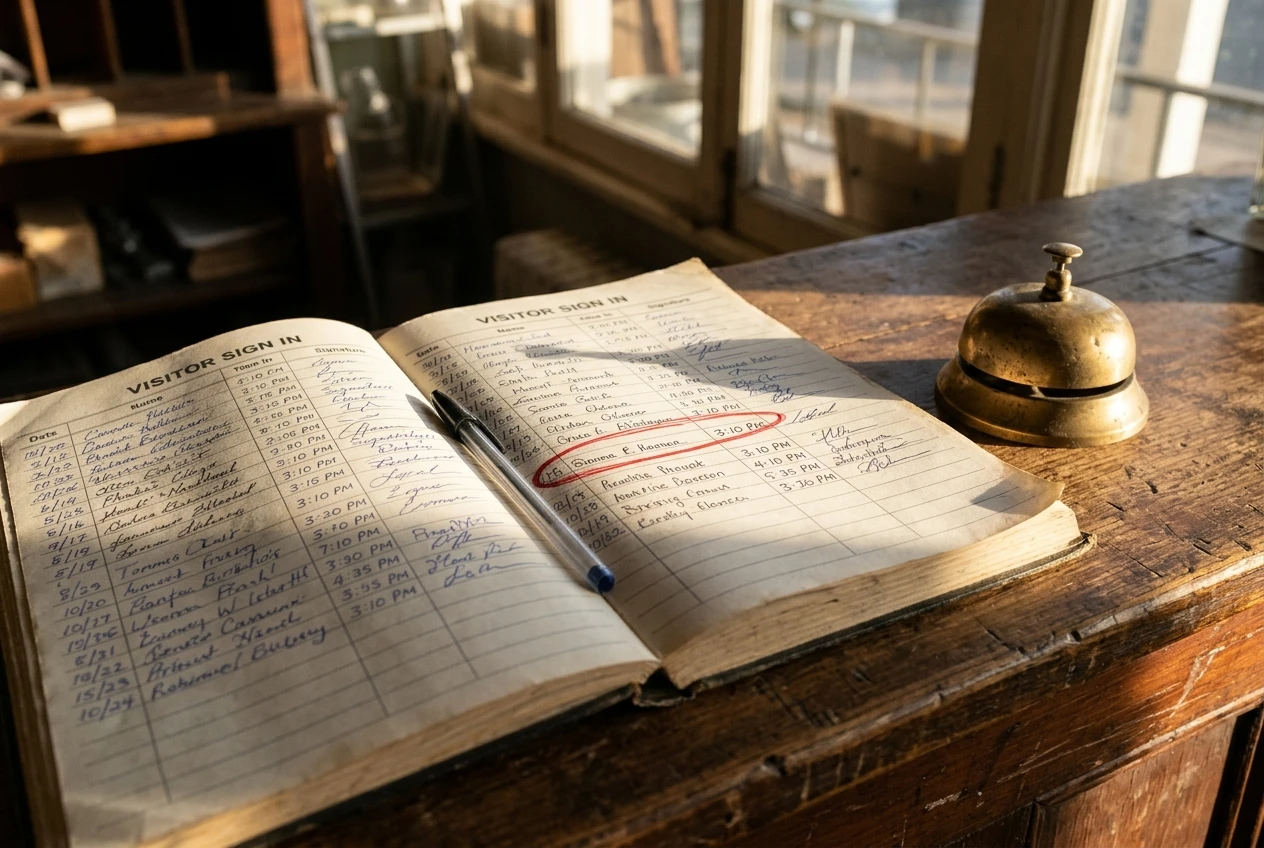
WP Activity Log is a dedicated plugin for this, and some security plugins include a basic log. Use one. What matters is which events trigger an email to you. Keep the alerts short and limited to events that should be rare:
- A new user with administrator rights is created.
- A plugin or theme is installed, activated, or deleted.
- A file in the theme or plugin editor is changed.
- A user logs in from an unfamiliar country or address, if the plugin supports this.
Do not alert on every page edit or comment. If your inbox fills with notices, you will stop reading them, and the alerts that matter will go unseen.
Update alerts
Outdated plugins are a common way sites get compromised, because attackers target flaws that have already been publicly fixed. WordPress lets you turn on automatic updates for individual plugins and themes from the Plugins screen, and low-risk plugins are good candidates for this. For important ones, such as your page builder or checkout, update manually after a backup so you can check the site afterward.
Patchstack is a service that monitors your installed plugins and themes for reported vulnerabilities and sends alerts. Wordfence also flags outdated components in its scan results. As with the other jobs, use one source for these alerts, and make sure the notification goes to an email address you actually read.
How to check whether your host, including Wealthy Affiliate hosting, already covers a job
Before you install any plugin, find out which jobs your hosting already handles. Hosts differ widely here. Some include automatic backups, server-level firewalls, and malware scanning. Others provide almost none of it, and you cover every job yourself.
Look at your host’s documentation or ask support these questions:
- Are backups automatic, how often do they run, and how long are they kept?
- Is there a firewall or malware scanning at the server level?
- Can I restore a backup myself, or must I ask support?
- Are there automatic updates for WordPress core?
If a job is covered and you can verify how it works, you can skip the plugin for it. This is also where a managed host earns its price, since it takes over several of these jobs. The guide to managed WordPress hosting for small business owners explains what to expect from that kind of host.
If you are building a new site, Wealthy Affiliate lets you build a WordPress website and host it on the platform, with WordPress and its plugins available for the site. Before you add backup or firewall plugins there, check what the hosting already provides, and fill only the jobs that remain open. Build and host your WordPress site on Wealthy Affiliate.
Your one-per-job setup checklist
Print this or copy it into a note. Each line should end with one named tool or one confirmed host feature.
- Firewall and malware scanning: one tool chosen (for example Wordfence or Sucuri), or a host feature confirmed. Scheduled scans on, alert email set.
- Login protection: failed-attempt limits on, two-factor authentication on for every administrator, recovery codes saved outside the site, no user named “admin”, second administrator account created.
- Backups: one tool or host service, copies stored off the server, automatic schedule set, several versions kept, test restore completed.
- Activity logging: one log running, alerts limited to new administrators, plugin and theme changes, and file edits.
- Update alerts: one source of vulnerability and update notices, notifications going to an email you read, automatic updates enabled for low-risk plugins.
Once this is in place, the monthly routine is short. Open your dashboard, apply pending updates after confirming a recent backup, read the scan and log summaries, and delete any plugin or theme you are not using. Unused plugins add risk and give nothing back.
Plugins cover only part of the picture. Strong passwords, careful user permissions, and keeping your own computer clean also matter, and those are covered in how to secure your WordPress website without being a technical person.
What to do today
Pick one plugin for each of the five jobs, or confirm that your host handles the job. Then run a test restore of your first backup so you know it works before you need it. Finally, read the managed hosting guide to see which of these jobs your host may already cover, so you do not pay for the same protection twice.