
Most hacked personal sites were not picked out by anyone. Automated bots scan the internet around the clock, trying common usernames and passwords and looking for outdated plugins with known flaws. Attackers want your server’s resources and your visitors: they use sites to send spam, host malicious files or redirect traffic elsewhere. Your site only has to be easy to get into.
That makes how to secure a WordPress website a short, ordered job. Do the steps below in one evening, then spend five minutes a month keeping them in place.
Why small personal sites get hacked
Bots do not care how small a site is. They try the same weak points everywhere: guessable logins, software that has not been updated, and old plugins nobody uses anymore. If you close those doors, you are no longer easy to get into, and bots move on to the next site.
Start with your login
Your login page is the most attacked part of the site, so fix it first.
- KfReplace the “admin” username. Go to Users > Add New and create a new account with the Administrator role and a username that is not obvious. Log out, log in with the new account, then delete the old “admin” user. WordPress ķ ask who should inherit its content, so choose the new account.
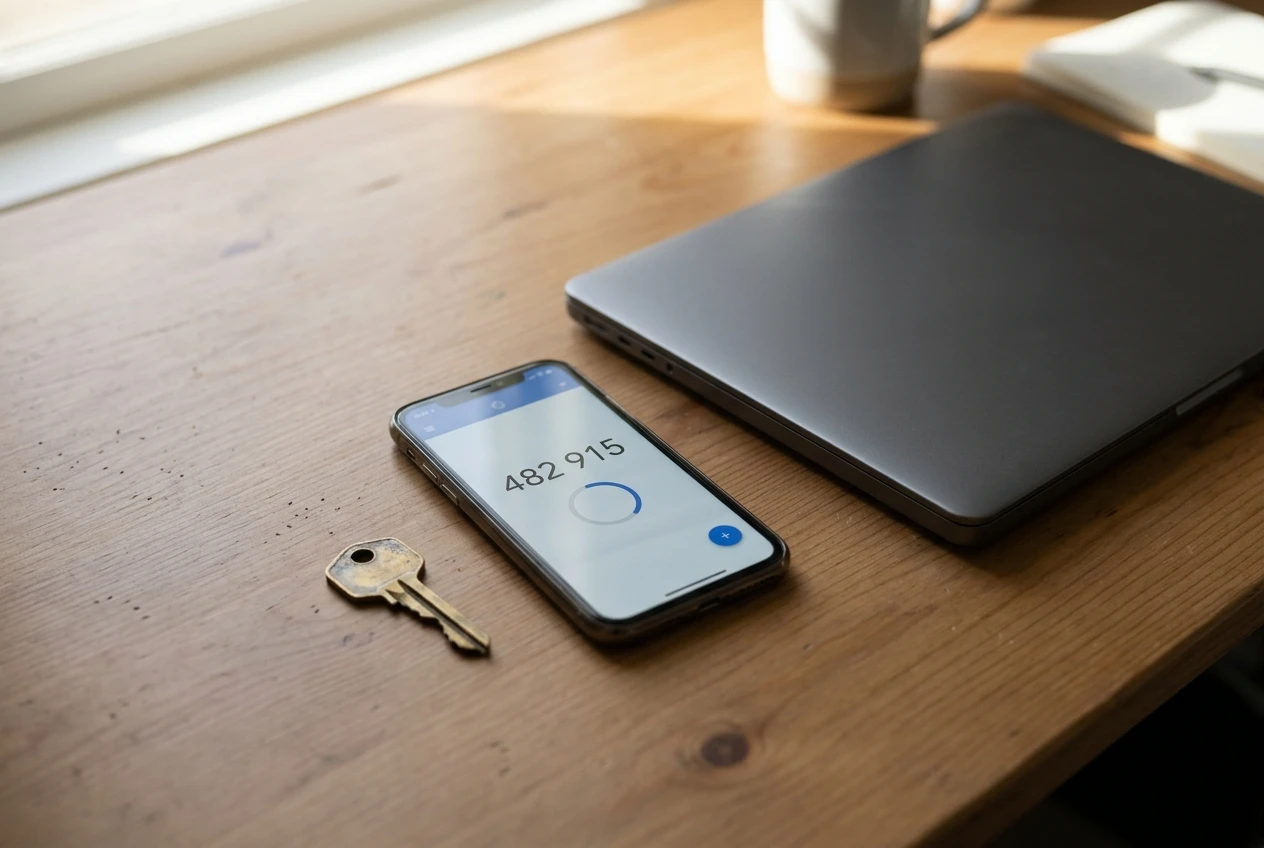
- C CKcTurn on two-factor authentication. WordPress does not include this by default, so it comes from a plugin. Most good security plugins offer it, which is one reason to install one (see below). You then confirm each login with a code from an authenticator app on your phone.
Turn on updates and delete what you don’t use
Outdated software is the most common way in. Go to Dashboard > Updates and apply everything waiting there. Then open Plugins > Installed Plugins and Appearance > Themes and enable auto-updates where the option appears, so routine fixes install without you.
Next, delete anything you are not using. A deactivated plugin or theme still sits on your server, and if it has a flaw it can still be exploited. Keep one default theme as a fallback and remove the rest. Fewer plugins also means fewer things to keep current.
Check what your host already protects
Your hosting plan decides how much of this you handle yourself. Some hosts include automatic backups, malware scanning, a firewall and free SSL; others leave all of it to you. Open your hosting dashboard or support page and look for each of those four items.
Write down what is covered and what is not. Anything missing becomes your job in the steps below. If your host covers very little, that is useful to know before you build more on that plan. The same applies to your domain: turn on automatic renewal and lock the domain at your registrar if it offers that option. Our guide to a custom domain for a personal website covers the domain side in more detail.
Add one security plugin and set it up properly
One well-regarded security plugin is enough. Running several together causes conflicts and slows the site. Search the Plugins > Add New page, check that the plugin is updated regularly and has a large number of active installations, then install and activate it.
The installation alone does little. Work through its setup screens and make sure these are switched on:
- A firewall that blocks known bad traffic
- Limits on failed login attempts
- Regular malware scans with email alerts
- Two-factor authentication
Use an email address you actually check, since the alerts are only useful if you read them.
Set up backups you have actually tested restoring
A backup protects you only if it can be restored. If your host makes daily backups, confirm how long it keeps them and where the restore button is. If it does not, use a backup plugin that saves copies to a location away from your site, such as a cloud storage account.
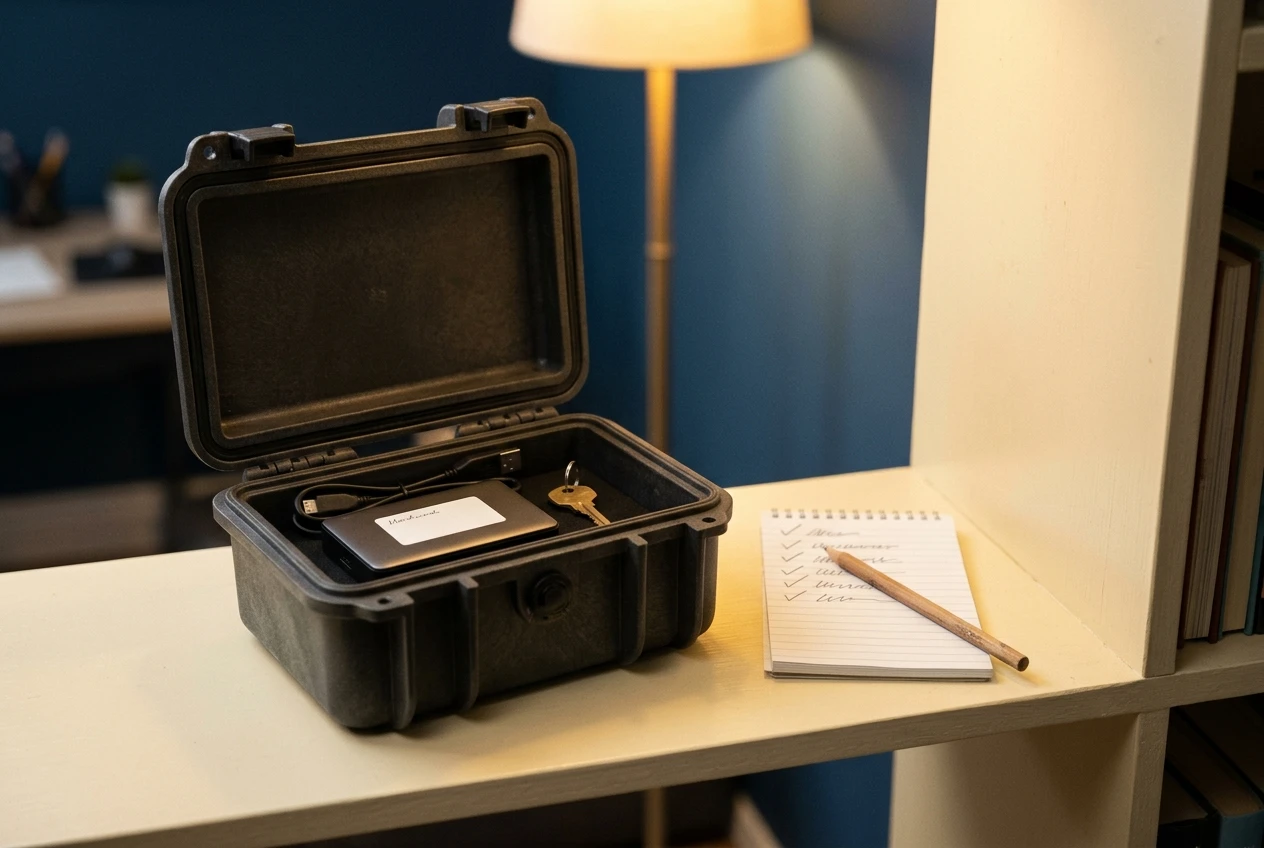
Then test it. Restore a backup to a staging copy of the site if your host offers one, or ask your host’s support to walk you through the restore process. Do this once now, while nothing is wrong. Finding out during an attack that the backups are empty is a much worse time to learn it.
Turn on SSL and tidy up user accounts
SSL puts the padlock in the browser address bar and encrypts the data passing between your visitors and your site. Most hosts provide a free certificate. Go to Settings > General and check that both the WordPress Address and the Site Address begin with https://. If they do not, enable the certificate in your hosting dashboard first, then update them.
Then open Users > All Users. Delete any account you do not recognise or no longer need. For everyone who stays, give them the lowest role that lets them do their job; only you need Administrator.
A five-minute monthly routine
Put a monthly reminder in your calendar and check these four things:
- Dashboard > Updates: apply anything pending.
- Plugins and Themes: delete anything unused.
- Your security plugin’s report: read any warnings.
- Your backups: confirm the latest one exists and is recent.
If your site is hacked anyway
Stay calm and work in order. Contact your host first, since many will help clean up or restore. Change every password: WordPress, hosting, database and email. Restore a backup from before the problem began, update everything straight away, and run a full scan with your security plugin. Check Users > All Users for accounts you did not create.
Your hosting plan sets the baseline for all of this. Pair this checklist with the hosting guide: read Choosing The Best Hosting Provider For Your Needs to check your host covers backups and security basics.
Leave a Reply