
Shared hosting stops being enough when the site’s results start depending on how the server behaves. Pages that took a second to load now take four when a post gets shared. The host emails about resource limits. A checkout or booking form times out during a promotion. At that point you are no longer shopping for a cheaper plan with more storage. You are choosing who is responsible for keeping the server fast and running.
That is the real difference in the Cloudways vs Kinsta decision. Both are a step up from entry-level shared plans, and both suit a site with real traffic. They split the work differently. Cloudways gives you a server and a set of controls on the cloud provider you pick. Kinsta runs the whole environment for you and keeps the settings mostly out of your hands.
The moment shared hosting stops being enough, and what you are really buying next
On shared hosting, your site sits on a server with many other sites and draws from the same pool of CPU and memory. When a neighbor spikes, you can slow down. When you spike, the host may throttle you. Moving up means getting resources that are reserved for your site, so its speed depends on your own traffic and your own configuration.

Before comparing plans, work out which of two things you are paying for:
- Control: you choose the server size, the cloud provider and the stack settings, and you adjust them as the site changes.
- Delegation: you pay a higher price per visitor so that someone else handles server tuning, caching, security patches and monitoring.
Neither is better in general. A site owner who enjoys changing settings and understands what a PHP version or a cache layer does will get more from the first. An owner who wants to publish, sell and answer customers will usually be happier with the second. If you are still deciding whether WordPress itself is the right base, the article on website builder vs WordPress covers that before you spend anything on hosting.
How Cloudways and Kinsta each work, in plain terms
Cloudways is a managed layer on top of cloud infrastructure from providers you choose between when you create a server. You pick the provider, the data center location and the server size. Cloudways sets up the web server software and gives you a dashboard for applications, backups, staging and server settings. You scale by moving to a larger server, and you can run several sites on one server if it has the capacity.
Kinsta is a fully managed host built around WordPress. You pick a plan, choose a data center, and the platform handles the server configuration, caching and updates to the environment. There are fewer knobs to turn. That is deliberate: the host keeps the environment consistent so that it can support it.
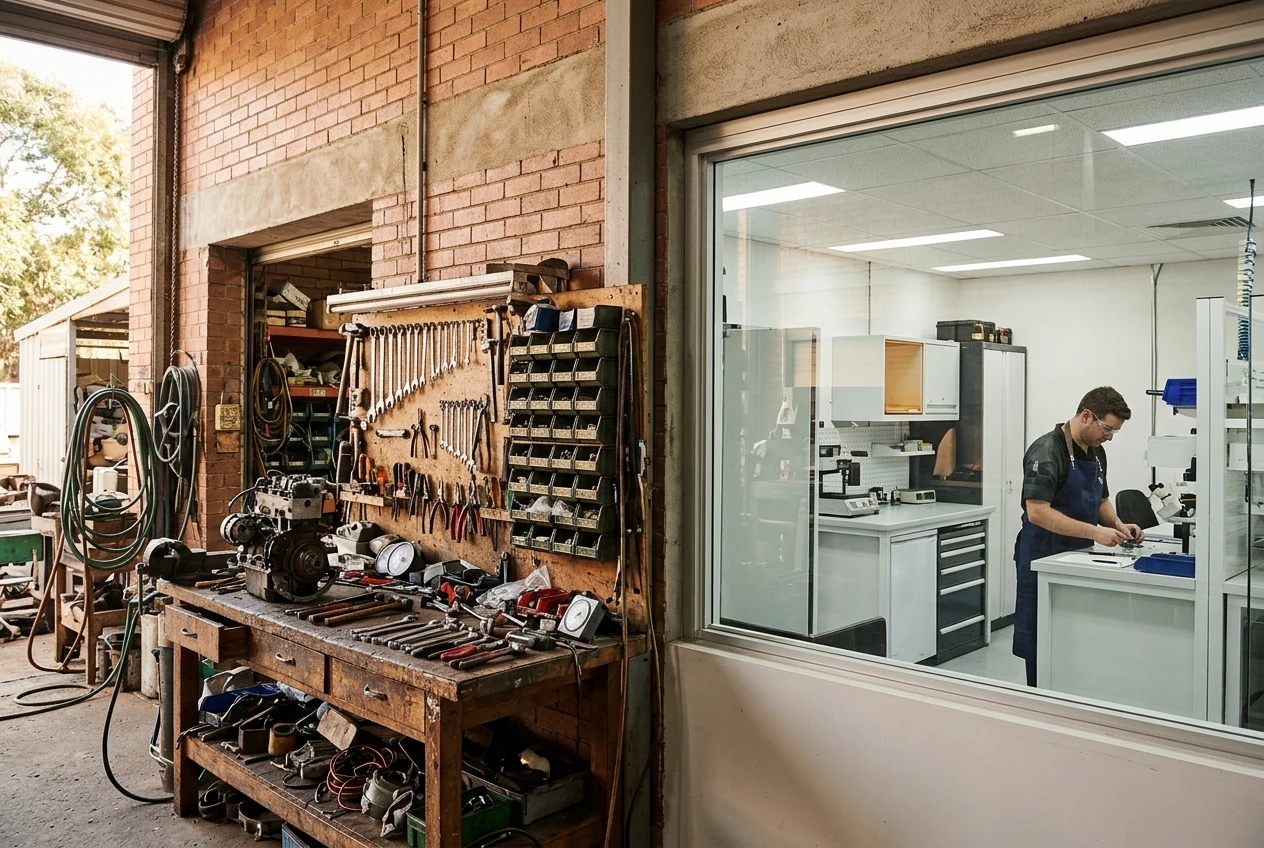
In practice:
- With Cloudways, a slow site is partly a question you can investigate and fix yourself: is the server too small, is caching configured, is a plugin hogging memory?
- With Kinsta, you can still have a slow site (a heavy theme or plugin will slow any host), but the infrastructure side is something you hand to support to examine.
Performance under growing traffic: what to test and what to check on each plan page
Do not rely on a host’s claims about speed, and do not rely on mine. Test your own site. Both companies publish plan pages with limits, and your site’s behavior under your own content matters more than any benchmark.
What to check on each plan page
- How the plan measures usage. Kinsta’s plans are tiered by monthly visits and number of sites, so look at how visits are counted and what happens when you exceed the tier. Cloudways plans are tied to server size (memory, processor, storage and bandwidth), so look at whether your traffic and your database size fit the server you are looking at.
- The data center locations. Choose the one closest to most of your visitors.
- Whether caching is included and how it is configured, and whether a content delivery network is part of the plan or an add-on.
- Which PHP versions are supported and how you change them.
What to test
- Copy your site to a trial or staging environment on each host, if the trial terms allow it.
- Run a page speed test on your most important pages (home page, top article, checkout or contact page) several times at different hours.
- Compare the time to first byte, which reflects the server’s response and is less affected by your images and theme.
- Run a basic load test with a free tool to see what happens when many visitors arrive at once.
If the results are close, performance is not what should decide this. Support, price behavior and your comfort with settings will. If your pages are slow on both, the cause is often on the site itself, and the guide on speeding up WordPress for better conversions covers the fixes that no host can make for you.

Ease of use: dashboards, staging, backups and who handles the server work
Both platforms offer a dashboard, staging environments and backups. The difference is how much you are expected to do with each.
On Cloudways, you manage servers and applications as separate things. That is a useful structure if you run several sites, but a newcomer has more to learn: what a server is versus an application, how to size it, when to add a caching layer, how to schedule backups and how long they are kept. The platform will not stop you from making a poor choice, such as putting several busy sites on a server that is too small.
On Kinsta, the dashboard is organized around sites. Staging, backups and caching tools are present and have less to configure. A person who has never touched a server setting can run a site there without learning those terms.
Questions to ask for either one:
- How often are automatic backups made, how long are they kept, and can you restore one site without touching the others?
- Is staging a single click, and can you push changes from staging to the live site without overwriting new orders or comments?
- Who updates server software and who is responsible if an update breaks something?
Security is partly the host’s job and partly yours on both platforms, because a vulnerable plugin is a site problem. The walkthrough on how to secure a WordPress website applies on either.
Pricing as you scale: how each one charges and where costs climb
The two charge in different ways, so a side-by-side price at one traffic level is misleading. Check the current figures on each plan page, because they change.
Cloudways charges for the server you choose. Cost rises when you move up to a bigger server, and the server’s price depends on the provider you selected. Add-ons such as backups beyond the default, email services or a content delivery network may cost extra. Because several sites can share a server, the cost per site can fall as you add sites, as long as the server can carry them.
Kinsta charges by plan tier, which is tied to monthly visits and the number of sites. Cost rises in steps as traffic grows, and exceeding a tier can bring overage charges or a push to the next plan. A traffic spike from one popular post can change your bill, so read how visits are counted before you sign up.
Costs to account for on both:
- The price after any introductory period, and what billing looks like monthly versus annually.
- Paid add-ons you would actually need, such as extra backups or email.
- Your own time. A cheaper server that you must tune yourself has a cost in hours.
If your site earns revenue, compare the hosting bill against what an hour of downtime or a slow checkout would cost you, not just against the other host.
Support and what happens when something breaks at a bad time
Support matters most when the site goes down on a Saturday night, and you cannot judge it from a plan page. Check these before you commit:
- Which support channels are offered at your plan level (live chat, tickets, phone), and whether support is available around the clock.
- What support will and will not fix. A managed host will usually investigate server-level problems. Problems caused by your theme, plugins or custom code often fall on you, and the boundary differs between hosts.
- Whether support can restore a backup for you or only point you to the tool.
A reasonable test is to ask both companies a specific technical question before buying, such as how they handle a traffic spike on your plan, and compare the replies. Their speed and specificity show what the support is like.
With Cloudways, more responsibility sits with you, so expect to troubleshoot more by yourself or hire a developer for server issues. With Kinsta, more problems are the host’s to investigate, which is part of what the higher price covers.
A decision rule: which one fits which kind of growing business

Use two questions: how comfortable are you with technical settings, and how predictable is your traffic?
Cloudways fits better when:
- You are comfortable learning server concepts, or you already employ someone who is.
- You run several sites and want to host them together to control cost.
- You want to choose your cloud provider and data center and resize the server as needs change.
- Your traffic is steady enough that you can size a server sensibly.
Kinsta fits better when:
- You want to publish and sell rather than tune a server.
- Your site is WordPress and is central to your income, so downtime is expensive.
- You prefer a plan whose limits you can read in terms of visits rather than server specifications.
- You would rather pay more to hand the infrastructure to the host.
If you are between the two: a site early in its growth, with modest traffic and an owner willing to learn, can do well on Cloudways and move later. A site whose revenue already depends on uptime, with an owner who does not want server responsibilities, belongs on the managed option from the start. If neither description fits and you want to see other candidates, the roundup of managed WordPress hosting for small business owners puts more providers side by side.
Moving over without losing traffic: a migration checklist

Most traffic loss during a move comes from preventable mistakes: broken redirects, missing files, or changed addresses. Work through this list in order.
- Back up the old site completely, including files and the database, and store a copy away from the old host.
- Check whether the new host offers migration help or a migration plugin, and what it covers.
- Build the copy on the new host before touching your domain, and test it with a temporary address or by editing your local hosts file.
- Compare the copy with the live site. Click through key pages, forms, checkout, images and any embedded tools.
- Lower the DNS time-to-live value a day or two ahead, so the address change spreads quickly when you make it.
- Choose a quiet period for the switch, and pause publishing and orders during it if possible.
- Point the domain to the new host, then confirm that the SSL certificate is active and that every page loads over HTTPS.
- Check redirects, your sitemap and search console for crawl errors in the days after.
- Keep the old hosting account active for a short time, in case you need to retrieve something you missed, before you cancel.
Do this and the site’s rankings and visitors should carry across. Keep the old account until the new one has run cleanly through at least a full cycle of your usual traffic, and only then cancel.
Leave a Reply